Author: Baaba Yawson

  • Telecel Broadband Coverage, Prices and Packages in Ghana

    Telecel Broadband Coverage, Prices and Packages in Ghana

    Quick Summary

    Plan TypePrice Range (GHS)Data (GB)ValidityBest For
    Flexi Offers100+Depends on inputNo expiry or 30 daysLight/budget users
    One Family Packages180 – 104547 – 103530 daysHouseholds, up to 4 users
    Standard Data Plans120 – 68026 – 62130–45 daysRegular consistent usage
    Add-On Bundles6 – 2601 GB – UnlimitedVariesTopping up or heavy usage

    What Is Telecel Broadband?

    Let’s start simple: Telecel Broadband is like giving your house or office a super-fast internet pipe. Instead of relying on mobile data like your phone does, it uses fibre-optic cables—which are like glass highways for data that travel much faster than regular wires.

    That means smoother streaming, quicker downloads, better video calls, and fewer “ugh, this is taking forever” moments.

    It can reach speeds up to 300 Mbps. Just to compare, MTN’s broadband maxes out at about 60 Mbps. That’s like comparing a motorbike to a sports car.

    Real-Life Speed Example

    At one location in East Legon, a speed test on Wi-Fi showed:

    • Download: 25.72 Mbps
    • Upload: 17.51 Mbps
    • Ping: 6 ms (good for gaming or Zoom calls)

    That’s good, especially over Wi-Fi. If you plug your laptop in with a cable, it can go even faster.

    Is Telecel Broadband Available in My Area?

    Good question! Before you get excited about the plans, you need to check if Telecel covers your location.

    Here’s How:

    1. Go to the Telecel Broadband page
    2. Turn on your phone or computer’s location
    3. Click “Check Availability”

    If that doesn’t work:

    • Click “Click here to find your location” and enter it manually.
    • If it says “Available,” you’re good to go.
    • Hit Proceed, then choose the type of broadband you want:
      • Residential: for homes
      • One Business: for small/medium offices
      • FTTB (Fibre To The Building): for large businesses

    How to Apply for Telecel Broadband

    Once you confirm availability, you have two options:

    Option 1: Online

    1. Choose the plan (residential, business, etc.)
    2. Fill out the online form
    3. Click Next and follow the instructions
    4. Telecel will call you to schedule an installation appointment

    Option 2: Walk-In

    • Visit any Telecel office
    • Take your Ghana Card and GPS address
    • Installation is currently free (as of October 2024)
    Telecel Broadband Coverage, Prices and Packages in Ghana

    Telecel Broadband Packages

    Let’s break them into groups so it’s easier to understand.

    1. Flexi Offers

    Think of this like pay-as-you-go broadband.

    TypeMinimum Price (GHS)Validity
    Non-Expiry100Doesn’t expire
    30-Day Offer10030 days

    You choose how much you want to spend. Great if you’re on a budget or don’t use the internet often.

    2. One Family Packages

    This is for homes where multiple people use the internet. It supports up to 4 mobile devices and includes bonus voice and SMS too.

    PackagePrice (GHS)Data (GB)
    One Family Small18047 GB
    One Family Medium330210 GB
    One Family Large550475 GB
    One Family Extra Large10451035 GB

    If you have Netflix binge-watchers, gamers, or work-from-home folks, this is your best bet.

    3. Standard Data Plans

    These are your regular monthly internet bundles. If you renew before it expires, your unused data rolls over and stays valid for 45 days. Sweet deal!

    PackagePrice (GHS)Data (GB)
    Browser12026 GB
    Streamer22080 GB
    Webmaster270104 GB
    Downloader410290 GB
    Office680621 GB

    Use these if your usage is pretty consistent every month.

    4. Add-On Bundles

    Already used up your main bundle? These are like mini top-ups.

    PackagePrice (GHS)Data
    Mini Basic255 GB
    Mini Pro5011 GB
    Pay As You Go61 GB
    Bolt-on Lite8030 GB
    Bolt-on Extra150135 GB
    Bolt-on Super260300 GB
    Unlimited Weekend30Unlimited (Weekend only)
    Unlimited Daily40Unlimited (1 day)
    Unlimited Holiday20Unlimited (1 holiday)

    Bonus Tip: The Too Moorch deal gives you 100% bonus data when you spend GHS 150/month. That’s double the value.

    How to Buy Telecel Broadband Data

    You have two main options:

    Option 1: Using USSD

    This is super fast and doesn’t need internet.

    1. Dial *900#
    2. Select Broadband Account
    3. Choose Fixed Broadband
    4. Tap Buy Bundle
    5. Select your package and confirm

    You’ll get a message once the data is added.

    Option 2: Using the Telecel Play App

    1. Open the Telecel Play app
    2. Tap on Telecel > Broadband
    3. Pick Fixed Broadband Packages
    4. Choose the one you want (for Flexi, enter the amount)
    5. Follow the steps to pay and confirm

    Easy and convenient if you already use the app for other things.

    How to Check Your Data Balance

    It’s always good to know how much data you’ve got left.

    1. Dial *900#
    2. Select Broadband Account
    3. Tap Check Balance

    Done!

    FAQs

    Q: How do I log into my Telecel router?

    Connect to Wi-Fi, open your browser, and type the IP address (it’s usually on a sticker on the router). Enter the default username and password.

    Q: What’s my broadband Wi-Fi name and password?

    Check the back of your router or the manual.

    Q: Do these bundles expire?

    Yes, most last 30 days. Flexi’s non-expiry ones don’t expire.

    Q: Can I move my broadband to a new house?

    Yes, as long as the new place has Telecel coverage.

    Telecel Broadband gives you solid internet options whether you’re a light user, a big family, or a business. The plans are flexible, the speeds are solid, and the pricing is fair. Just make sure it’s available in your area before you jump in.

    And once you’ve picked your plan, buying data and checking balance is just a few taps or dial codes away. Simple, fast, and reliable—just how internet should be.

  • Jiji Expands Beyond Africa with Bangladesh as the Next Stop

    Jiji Expands Beyond Africa with Bangladesh as the Next Stop

    Jiji, the African e-commerce giant, is taking a big leap beyond the continent.

    The company has set its sights on Bangladesh, a country with a booming middle class and rising mobile connectivity. It’s a move that shows Jiji is ready to go global, targeting high-growth emerging markets outside Africa. And the numbers back up their decision—Bangladesh’s e-commerce market is on track to hit $13 billion by 2027, according to Payments and Commerce Market Intelligence (PCMI).

    Right now, Jiji operates in seven African countries: Ethiopia, Ghana, Kenya, Nigeria, Tanzania, Uganda, and Senegal. Expanding into Bangladesh feels like the next logical step. The country has 131 million internet users, and more people are getting comfortable shopping online. That’s a massive audience for Jiji, which already has 12 million active users every month.

    “With a solid financial foundation and a scalable business model, we have grown into a profitable leader in Africa’s e-commerce space,” a Jiji spokesperson told TechCabal. “Our success in Africa has shown us how to navigate fast-growing markets, and we believe Bangladesh has the same potential for Jiji to thrive, helping to grow the e-commerce sector.”

    Bangladesh has been making strategic moves to fuel e-commerce growth. Government policies, such as the Information and Communication Technology (ICT) Act of 2006, provide a legal framework for online transactions while addressing cybersecurity issues. There are also national ICT policies designed to shape the country’s digital economy, including e-commerce.

    These efforts, combined with a growing middle class, have made Bangladesh a promising market. A PCMI survey from 2024 revealed that 79% of Bangladeshi consumers have shopped online, and 47% feel comfortable making digital payments.

    However, Jiji won’t have the market to itself. It will be going up against big names like Daraz, Bikroy, and Ajkerdeal—companies that already have strong brand recognition and consumer trust. To win over Bangladeshi shoppers, Jiji will need to stand out with localized offerings and strategic partnerships, much like it did in Africa.

    Since its launch in 2014, Jiji has found success by adapting to market needs. In Nigeria, it gained traction by offering free listings to first-time users and preloading its app on budget-friendly smartphones through partnerships with phone manufacturers. In 2016, the company struck a deal with Airtel to allow users to browse the platform without using data.

    Jiji’s aggressive expansion strategy has also played a key role in its growth. In 2019, the company raised $21 million and acquired OLX Africa, taking over operations in Nigeria, Kenya, Ghana, Uganda, and Tanzania. This gave Jiji access to a combined market of 300 million people. In 2021, Jiji acquired Cars45, a platform for buying and selling used cars in Nigeria, Kenya, and Ghana. The next year, it took over Tonaton, its main competitor in Ghana.

    The strategy has worked well in Africa, and Jiji is now hoping to replicate that success in Asia. The question is: can it carve out space in Bangladesh’s competitive e-commerce landscape? Time will tell, but if history is any indication, Jiji knows how to play the long game.

  • How to Use the Telecel Play App in Ghana

    How to Use the Telecel Play App in Ghana

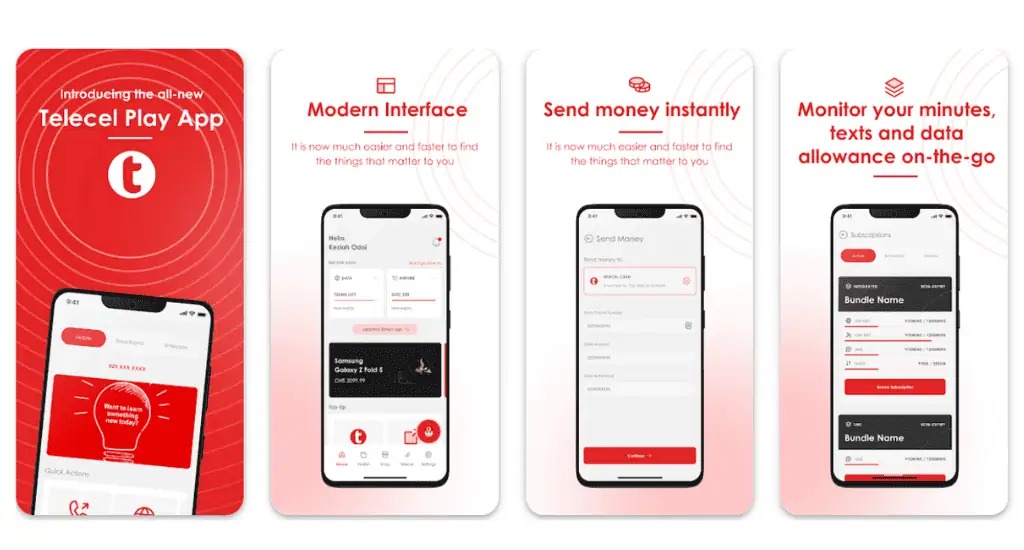
    The Telecel Play app is like your personal control center for everything Telecel.

    You can buy data, check your balance, send money, or even book a ride with ease. If you’ve ever wondered, “How do I manage my Telecel account without stress?”—this guide is for you!

    What Is the Telecel Play App?

    Think of the Telecel Play app as a remote control for your Telecel mobile services. Instead of dialing codes or visiting an agent, you can do everything right from your phone. Here’s what it helps you with:

    • Buy data and voice bundles
    • Send and receive money with Telecel Cash
    • Pay utility bills (electricity, water, DStv, GOtv, etc.)
    • Manage subscriptions and track usage
    • Book a Yango ride
    • Access special deals and loyalty rewards

    There’s also a web version of the app, but it’s mainly for broadband users and businesses.

    How to Use the Telecel Play App in Ghana

    How to Download the Telecel Play App

    Getting the app is as easy as downloading any other app. Just follow these steps:

    1. Open the Google Play Store (for Android users) or the Apple App Store (for iPhone users).
    2. Type Telecel Play Ghana in the search bar.
    3. Look for the official app and tap Install (on Android) or Get (on iPhone).
    4. Wait a few moments for the installation to complete.

    That’s it! You’re ready to set up your account.

    How to Sign Up on the Telecel Play App

    Once the app is installed, follow these steps to create an account:

    1. Open the app.
    2. Tap I don’t have an account (if you’re new) or I already have an account (if you’ve signed up before).
    3. Select your account type:
      • Mobile (for regular phone users)
      • Broadband (for fixed internet users)
    4. Enter your Telecel mobile number or broadband user ID.
    5. You’ll receive a one-time password (OTP) via SMS. Enter the code and tap Next.
    6. Create a secure password or set up biometric login (fingerprint or Face ID).
    7. Log in with your new details.

    And that’s it—you’re in! Now, let’s explore what you can do with the app.

    How to Use the Telecel Play App in Ghana

    What Can You Do on the Telecel Play App?

    The app is packed with features that make managing your mobile account super convenient. Here’s a breakdown:

    1. Buy Voice and Data Bundles

    Running out of airtime or data? No problem. The app lets you buy bundles in just a few taps.

    Bundle TypeDescription
    FlexiChoose exactly how much airtime or data you need.
    No ExpiryYour data or airtime won’t expire. Use it whenever you want.
    Special OffersExclusive promotions available only on the app.
    Roaming BundlesStay connected when traveling outside Ghana.
    Made4MePersonalized data and voice deals based on your usage.

    You can also track your remaining balance from the homepage.

    2. Send and Receive Money with Telecel Cash

    Telecel Cash is built into the app, so you can:

    • Send money to friends and family.
    • Withdraw cash from an agent.
    • Pay bills (electricity, water, DStv, GOtv, etc.).
    • Buy airtime and data directly from your wallet.
    • Check your transaction history.

    It’s like having a mobile bank in your pocket!

    3. Manage Your Account and Settings

    Want to personalize your experience? The settings menu lets you:

    • Turn notifications on/off so you’re only alerted about what matters.
    • Switch app themes to light or dark mode.
    • Change language preferences to use the app in a language you’re comfortable with.
    • Enhance security with PINs or biometrics.
    • Contact customer support directly from the app.

    4. Pay Bills and Access Extra Services

    Forget long queues! You can pay utility bills with just a few taps. The app also provides access to:

    • Yango Ride – Book a ride directly from the app.
    • Betway – Access sports betting services.
    • Red Loyalty Rewards – Earn and redeem points for using Telecel services.
    • SOS Airtime – Borrow airtime when you run low.

    Need Help? Use TERi, the Virtual Assistant

    At the bottom right of the app, you’ll see TERi, a chatbot that can answer your questions instantly. Whether you need help buying a bundle or checking your balance, TERi has you covered.

    How to Use the Telecel Play App in Ghana

    The Telecel Play app makes managing your mobile account effortless. Whether you’re buying data, sending money, or booking a ride, everything is in one place. If you haven’t downloaded it yet, now’s the time to do it. Once you start using it, you’ll wonder how you ever managed without it!

    Got questions? Open the app and give TERi a try!

  • Flutterwave Partners with Affinity Bank to Launch Pay With Bank Transfer in Ghana

    Flutterwave Partners with Affinity Bank to Launch Pay With Bank Transfer in Ghana

    Flutterwave, Africa’s top payments technology company, is making moves in Ghana again.

    This time, they’ve integrated Pay With Bank Transfer in partnership with Affinity Bank, giving businesses another seamless way to receive payments.

    If you’ve been paying attention to Ghana’s payment trends, you’ll know bank transfers are on the rise. In 2023 alone, Ghanaians made over 115 million bank transfer payments. That’s a big deal. While Mobile Money (MoMo) still dominates, this shift suggests people are looking for more options.

    For businesses using Flutterwave, this integration means they can now accept payments via bank transfers, making transactions smoother and more flexible for customers.

    With this new feature, businesses in Ghana can:

    • Accept bank transfers as a payment method, making transactions faster and more secure.
    • Reduce reliance on cash and mobile money.
    • Give customers more options, which can lead to more sales.

    Flutterwave’s leadership is clear on why this move matters:

    “We are excited to extend our services to the Ghanaian market. By making payment options like Pay With Bank Transfer available for everyday use, we are expanding access to payments and enabling local businesses to thrive.” — Olugbenga Agboola, Flutterwave Founder & CEO

    “By delivering essential payment options like Pay With Bank Transfer, we’re providing an easy way for businesses in Ghana to increase revenue opportunities and grow.” — Geoffrey Fiador, Manager, Country Operations & Partnerships, Flutterwave

    This update comes shortly after Flutterwave secured approval from the Bank of Ghana to offer inward remittance services. That’s another step toward making digital payments more accessible across Africa.

    With a presence in over 34 countries, Flutterwave is cementing its role as a major fintech player, helping businesses bridge the gap between traditional and digital payments. If Ghana’s growing adoption of bank transfers is any indication, this is just the beginning.

  • How to Apply for a Smart ID Online in South Africa

    How to Apply for a Smart ID Online in South Africa

    Quick Summary

    Applying for a Smart ID online in South Africa is simple:

    1. Register on eHomeAffairs – Register on the Official Department of Home Affairs Website.
    2. Fill out the application form – Provide your personal details.
    3. Book a biometric appointment – Choose a participating bank branch.
    4. Pay the application fee – R140 (free for first-time applicants).
    5. Visit the bank for biometrics – Fingerprints and photo will be taken.
    6. Wait for processing – Usually takes 10-14 working days.
    7. Collect your Smart ID – Pick it up from the same bank.

    Now, let’s go into the details.

    What Is a Smart ID, and Why Do You Need One?

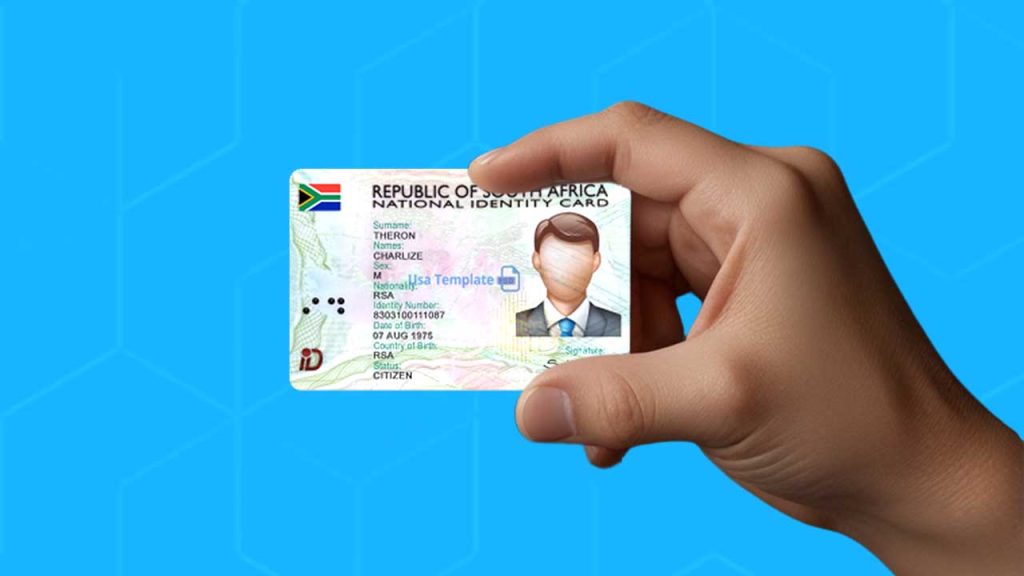
    A Smart ID is South Africa’s modern version of the traditional green barcoded ID book. It’s a more secure card with embedded technology that helps prevent fraud. If you’re 16 or older, you need one—it’s essential for opening a bank account, applying for jobs, and proving who you are.

    Who Can Apply for a Smart ID Online?

    You can apply online if you meet these conditions:

    • You’re a South African citizen.
    • You’re applying for your first Smart ID or replacing a lost or damaged one.
    • You’re 16 years or older.
    • You have internet access to complete the online process.

    Now, let’s go step by step.

    Step 1: Register on the Department of Home Affairs Website

    The first thing you need to do is create an account on the Department of Home Affairs eHomeAffairs portal. Here’s how:

    1. Go to the official website: Visit the ehomeAffairs website (always use the official site to avoid scams!).
    2. Click on ‘Register’: You’ll need to provide your ID number, email address, and phone number.
    3. Create a password: Make sure it’s something secure but easy to remember.
    4. Verify your account: A confirmation email will be sent to you—click the link inside to activate your account.

    Once your account is set up, you’re ready for the next step.

    Step 2: Fill Out the Smart ID Online Application Form

    Now that you’re registered, log in and complete the application form. Here’s what to expect:

    • Personal Details: Full name, date of birth, and contact information.
    • Address: Where you currently live.
    • Reason for Application: First-time application, replacement, or renewal.

    Tip: Double-check all the information before you submit—mistakes could cause delays!

    Step 3: Book an Appointment for Biometrics

    After submitting your application, you’ll need to schedule an appointment at a participating bank branch to complete the process. Why? Because the government needs to take your fingerprints and a photo to verify your identity.

    Where Can You Go for Biometrics?

    Not all banks offer this service, but some branches of Absa, FNB, Nedbank, and Standard Bank participate. The online system will show you available options.

    How to Book Your Appointment:

    1. Select your preferred bank branch.
    2. Choose a date and time that works for you.
    3. Confirm your booking.

    Important: You must go to the bank in person for this step—no online shortcuts here!

    Step 4: Pay the Application Fee

    Applying for a Smart ID isn’t free (unless it’s your first time). Here’s what you need to know:

    Application TypeCost (ZAR)
    First-time Smart IDFree
    Replacement (Lost/Damaged)R140

    How to Pay:

    You can pay online using:

    Credit or debit card.
    EFT (Electronic Funds Transfer) if your bank supports it.

    Once you’ve paid, save the proof of payment—you’ll need it later.

    Step 5: Visit the Bank for Biometrics

    Now comes the only in-person step: your visit to the bank.

    What Happens at the Bank?

    • They’ll scan your fingerprints.
    • They’ll take a digital photo.
    • You’ll confirm your details one last time.

    What to Bring:

    • Your proof of payment (if applicable).
    • Your current ID book (if replacing it).
    • Any additional documents the system requested.

    After this, the bank sends your application to Home Affairs for processing.

    Step 6: Wait for Processing

    Once your biometrics are captured, your application is officially in motion! Processing usually takes 10-14 working days, but it can sometimes be faster or slower depending on demand.

    Want to check your application status? Log in to eHomeAffairs and track your progress.

    Step 7: Collect Your Smart ID

    Once your Smart ID is ready, you’ll get a notification. Pick it up from the same bank where you did your biometrics.

    What to Bring When Collecting:

    • Your old ID book (if applicable).
    • The SMS or email notification that says your ID is ready.
    • Any other requested documents.

    Note: Only YOU can collect your Smart ID—no one else can pick it up on your behalf!

    How to Apply for a Smart ID Online in South Africa

    FAQs

    QuestionAnswer
    Can I apply online if I don’t have internet?No, you’ll need to visit a Home Affairs office instead.
    What if I don’t have a bank account?You can still apply, but you must visit a Home Affairs office for biometrics.
    How long does it take to get a Smart ID?Usually 10-14 working days after biometric capture.
    Can I change my appointment date?Yes, log in to eHomeAffairs and reschedule.

    Applying for a Smart ID online in South Africa is a huge time-saver. Instead of waiting in long queues at Home Affairs, you can complete most of the process from your phone or computer. The only time you need to leave home is for biometrics—and even that is at a bank, not a government office!

    By following these simple steps, you’ll have your Smart ID in no time. If you’re ready to start, head over to the eHomeAffairs website and get going!

    Have questions? Drop them in the comments, and I’ll be happy to help!

  • How to Flash Your Android Phone Without a PC

    How to Flash Your Android Phone Without a PC

    Flashing your Android phone without a computer might sound like a high-tech hacker move, but it’s actually something you can do yourself if you follow the right steps.

    Think of it like giving your Samsung or Xiaomi phone a fresh start, like resetting a video game when things aren’t going your way. Whether your device is sluggish, buggy, or you want a new custom ROM, this guide will walk you through everything in a simple, easy-to-follow way. Let’s get started!

    What Does Flashing Mean?

    Flashing your phone means installing a new version of its operating system (called a ROM) or fixing software issues by replacing the current system files. It’s like wiping off an old chalkboard and drawing something new. Sometimes, flashing is needed to:

    • Fix software issues and crashes.
    • Remove bloatware that slows your phone down.
    • Install a custom ROM for more features and better performance.

    And the best part? You don’t need a computer to do it!

    Things to Do Before Flashing

    Before we jump in, there are a few important steps to take. Skipping these could lead to losing your data or even bricking your phone (which means turning it into an expensive paperweight).

    1. Back Up Your Data

    Flashing erases everything, so you’ll want to back up your contacts, messages, photos, and apps. Here’s how:

    Data TypeHow to Back Up
    ContactsSync with Google Account
    PhotosUse Google Photos, OneDrive, or an SD card
    MessagesUse SMS Backup & Restore app
    Apps & SettingsUse your phone’s built-in backup feature

    2. Charge Your Phone

    Your phone should have at least 70% battery to avoid shutting down in the middle of flashing, which could cause major issues.

    3. Enable Developer Options

    Developer Options give you access to settings that aren’t usually available. Here’s how to enable them:

    1. Go to Settings > About Phone.
    2. Find Build Number and tap it 7 times until you see “You are now a developer!”
    3. Go back to Settings, and you’ll see Developer Options.

    4. Enable OEM Unlocking and USB Debugging

    Still in Developer Options:

    • Turn on OEM Unlocking (this allows you to unlock your bootloader).
    • Turn on USB Debugging (this lets your phone communicate with external tools).

    Steps to Flash Your Android Phone Without a PC

    1. Download Required Files

    You’ll need:

    • Custom Recovery (like TWRP) to install the new ROM.
    • A new ROM (official firmware or a custom ROM like LineageOS).

    Make sure the files match your phone model exactly!

    2. Move Files to Your Phone

    Once downloaded, move the files to your phone’s internal storage or SD card so they’re easy to find later.

    3. Boot into Recovery Mode

    This step lets you access special tools for flashing your phone. Here’s how:

    1. Power off your phone.
    2. Press and hold Volume Up + Power (or Volume Down + Power depending on your phone model).
    3. Keep holding until the Recovery Mode menu appears.

    4. Backup Your Current ROM (Optional but Recommended)

    If anything goes wrong, you can restore your phone to how it was.

    • In TWRP recovery, select Backup and choose System, Data, and Boot.
    • Swipe to start the backup process.

    5. Wipe Data and Cache

    Before flashing the new ROM, you need to clean out the old files:

    • In recovery mode, select Wipe > Advanced Wipe.
    • Check Dalvik Cache, System, Data, and Cache.
    • Swipe to confirm the wipe.

    6. Flash the New ROM

    Now comes the main part!

    1. Go back to the main recovery menu.
    2. Select Install.
    3. Navigate to where you saved the ROM file.
    4. Tap it and swipe to flash.

    Wait a few minutes while the ROM installs.

    7. Reboot Your Phone

    After installation, go back to the main menu and tap Reboot System. Your phone will restart, and the first boot might take 5-10 minutes—that’s normal!

    What to Expect After Flashing

    • Your phone will feel fresh and clean.
    • You may need to reinstall apps and log into your accounts.
    • If you flashed a custom ROM, you’ll have new features and a different interface.

    Troubleshooting Common Problems

    ProblemSolution
    Phone stuck on logoTry booting into recovery mode and wiping cache and data.
    Can’t boot into recoveryCheck if you installed a compatible TWRP version.
    No SIM detectionFlash the correct modem firmware for your ROM.

    Flashing your Android phone without a PC might seem intimidating, but once you understand the steps, it’s pretty straightforward. Just remember to back up your data, download the right files, and follow each step carefully.

    Now go ahead—breathe new life into your phone and enjoy the freedom of customizing your Android experience!

  • How to Get a Loan from AirtelTigo in Ghana Fast

    How to Get a Loan from AirtelTigo in Ghana Fast

    This article explains how to borrow money from AirtelTigo in Ghana fast using its Fido Loan and Speed Loan options.

    If you’re an AirtelTigo user in Ghana and need quick cash, AirtelTigo’s loan service has got you covered. Whether you need money for an emergency, a last-minute bill, or just to hold you over until payday, this guide will show you exactly how to get a loan fast using AirtelTigo Money.

    Let’s break it down step by step so it’s super easy to understand.

    What is the AirtelTigo Loan?

    AirtelTigo, in partnership with Speed Microfinance Limited, offers short-term loans to eligible users through AirtelTigo Money (AT Money). These loans can be used for anything you need—whether it’s settling a bill, covering transport costs, or making a quick purchase.

    Here’s how it works:

    • You borrow money through your AT Money account.
    • You repay the loan within 30 days.
    • There’s a small interest charge on the amount borrowed.

    The money is deposited into your AirtelTigo Money wallet within an hour after approval, so it’s a quick and convenient option when you need funds fast.

    Who Can Apply for an AirtelTigo Loan?

    Not everyone is eligible for an AirtelTigo loan. You must meet these basic requirements:

    RequirementDetails
    AgeYou must be at least 18 years old.
    AT Money AccountYour AT Money wallet must be active and registered in your name.
    Ghana CardYour AirtelTigo SIM must be linked to your Ghana Card.

    If you meet these criteria, you’re good to go!

    How to Borrow Money from AirtelTigo Money

    Applying for an AirtelTigo loan is easy and takes just a few minutes. Follow these steps:

    1. Dial *110# on your AirtelTigo line.
    2. Select “Savings and Loans.”
    3. Choose “Loans and Pay Back Loan.”
    4. Select “Speed Loan.”
    5. Follow the prompts to complete your loan request.
    6. If approved, you’ll receive an SMS confirmation, and the money will be credited to your AT Money wallet within 60 minutes.

    That’s it! No paperwork, no long waiting times—just a quick loan when you need it.

    How Much Can You Borrow?

    The amount you can borrow depends on your AirtelTigo Money transaction history. If you regularly use AT Money for payments and transfers, you’re more likely to qualify for a higher loan amount.

    AirtelTigo Loan Interest Rate and Fees

    Just like any loan, borrowing from AirtelTigo comes with interest. Here’s a simple breakdown:

    Loan Amount (GH₵)Interest (5.9%)Total Repayment (GH₵)
    502.9552.95
    1005.90105.90
    20011.80211.80
    50029.50529.50

    If you don’t repay your loan on time, AirtelTigo will charge a penalty fee of 15.5% on the outstanding amount. So, it’s best to pay back your loan on time to avoid extra charges.

    How to Get a Loan from AirtelTigo in Ghana Fast

    How to Repay Your AirtelTigo Loan

    There are two ways to repay your AirtelTigo loan: manual repayment and automatic deduction.

    1. Manual Repayment

    If you want to repay the loan yourself, follow these steps:

    1. Dial *110# on your AirtelTigo line.
    2. Select “Savings and Loans.”
    3. Choose “Loans and Pay Back Loan.”
    4. Select “Speed Loan.”
    5. Follow the prompts to repay the loan.

    If you took a Fido Loan, you can repay it through AirtelTigo Money by selecting “Pay Back Fido Loan” in the loan repayment menu.

    2. Automatic Deduction

    AirtelTigo also makes repayment easy by automatically deducting the loan amount from your AT Money wallet on the due date. Just make sure you have enough money in your wallet when the time comes!

    Tips to Increase Your Loan Limit

    Want to borrow more next time? Here’s how to improve your loan limit:

    • Use AirtelTigo Money Regularly: The more you use AT Money for transactions, the better your chances of getting a higher loan limit.
    • Repay on Time: Paying back your loans promptly builds trust and increases your borrowing limit.
    • Keep Your Account Active: If your AT Money account is dormant, you may not qualify for a loan.

    AirtelTigo loans are a lifesaver when you need quick cash. They’re fast, convenient, and easy to apply for. Just remember to borrow responsibly and repay on time to avoid penalties.

    Now that you know how to get a loan from AirtelTigo in Ghana fast, you can confidently access emergency funds whenever you need them!

    Need help? If you experience any issues, contact AirtelTigo customer support by dialing 100 or visiting an AirtelTigo shop near you.

  • MTN MiFi vs. TurboNet: Which is Better in Ghana?

    MTN MiFi vs. TurboNet: Which is Better in Ghana?

    If you’re looking for a reliable internet connection in Ghana, you’ve probably come across two popular options from MTN: the MTN MiFi and the MTN TurboNet. But which one should you choose? It depends on what you need! Let’s break it down in a way that makes sense, whether you’re a student, remote worker, or just someone who loves fast internet.

    Quick Overview: Key Differences Between MTN MiFi and TurboNet

    FeatureMTN MiFiMTN TurboNet
    Primary FocusMobile hotspotHome/office broadband
    PortabilityHighly portableLess portable
    Max Connected DevicesUp to 10Up to 32
    Speed10-15 MbpsUp to 300 Mbps
    PriceGH₵300 – GH₵600GH₵1,500 – GH₵2,500
    Power SourceBattery (6-8 hours)Direct power (with optional backup battery)

    Which One is Easier to Use?

    Both the MTN MiFi and TurboNet are easy to set up. All you have to do is insert an MTN SIM card, turn on the device, and connect your gadgets using the Wi-Fi name and password. But there are a few key differences:

    • MTN MiFi works just like a mobile hotspot. It’s small, wireless, and charges via a USB cable. You can move around with it, making it great for students, travelers, or anyone on the go.
    • MTN TurboNet is more like a mini router for your home or office. It needs to be plugged into a power source to work, but it offers stronger and more stable internet, especially in areas with good MTN 4G coverage.

    Internet Speed: Which One is Faster?

    Speed is one of the biggest differences between these two devices.

    Speed FactorMTN MiFiMTN TurboNet
    Download Speed10-15 MbpsUp to 300 Mbps
    Upload Speed5-10 MbpsUp to 50 Mbps
    • MTN MiFi is good for basic tasks like browsing, social media, and emails. It can also handle YouTube and video calls but may struggle with HD streaming and gaming.
    • MTN TurboNet is much faster. If you love watching Netflix in HD, playing online games, or need strong internet for Zoom meetings, TurboNet is the better option.

    However, speed depends on network coverage in your area. If MTN’s 4G signal is weak, neither device will perform well.

    Data Costs: Which One Gives You More for Your Money?

    Both devices require MTN data bundles, but they have different pricing and data options.

    Cost (GHS)MTN MiFi (GB)MTN TurboNet (GB)
    251.492.41
    432.564.30
    875.198.69
    25333.5291.82
    516Not Available350.54
    • MTN MiFi uses a regular MTN SIM card, so you can buy normal MTN data bundles (*138#). However, there’s a limit—once you buy GHS 350 worth of data, you can’t go higher.
    • MTN TurboNet has special data bundles (*5057#) with better value. For example, with GHS 516, you get 350GB, while the MiFi can’t even reach that amount.

    Battery Life & Power: Which One Lasts Longer?

    • MTN MiFi runs on a rechargeable battery that lasts 6-8 hours. This makes it perfect for people who move around a lot.
    • MTN TurboNet needs a direct power source, but some versions come with a backup battery that can last 10-12 hours during power outages.

    If you experience frequent power cuts, the MiFi might be more convenient unless you have a backup power solution for TurboNet.

    MTN MiFi vs. TurboNet- Which is Better in Ghana?

    Portability: Which One is Easier to Carry Around?

    This is where MTN MiFi wins hands down. It’s small, lightweight, and fits in your pocket. You can use it anywhere—at home, school, in a car, or even at the beach!

    MTN TurboNet, on the other hand, is designed to stay in one place. You can carry it if needed, but it’s bulkier and requires a power source.

    Price: Which One is More Affordable?

    DevicePrice Range (GHS)
    MTN MiFiGH₵300 – GH₵600
    MTN TurboNetGH₵1,500 – GH₵2,500

    If you’re on a tight budget, MTN MiFi is the better choice because it’s much cheaper. However, if you can afford the higher price, TurboNet offers better value in the long run with faster speeds and bigger data bundles.

    Which One Should You Choose?

    It all depends on what you need:

    • Choose MTN MiFi if:
      • You want something small and portable
      • You don’t want to rely on electricity
      • You only need internet for basic browsing, social media, and emails
      • You’re on a budget
    • Choose MTN TurboNet if:
      • You need fast and reliable internet for home or office use
      • You do a lot of streaming, gaming, or video calls
      • You have multiple devices to connect (up to 32)
      • You want better value on data packages

    Both MTN MiFi and TurboNet are great choices, but they serve different needs. If you’re always on the move, the MiFi is your best bet. But if you want a fast and stable connection for multiple users, TurboNet is the way to go. Either way, make sure to check MTN’s 4G coverage in your area before buying.

    Still not sure? Think about your internet habits and pick the one that fits your lifestyle best!

  • How to Transfer Money from MTN MoMo to Banks in Ghana

    How to Transfer Money from MTN MoMo to Banks in Ghana

    Moving money from your MTN MoMo wallet to your bank account in Ghana is easy once you know how. Whether you need to pay bills, save money, or send funds to a business account, this guide will show you three simple ways to get it done.

    Let’s break it down step by step, so you can follow along without stress.

    Method 1: Wallet-to-Bank Transfer (Direct Transfer)

    This is the simplest way to move money from your MTN MoMo wallet to your bank. It requires that your MoMo wallet is linked to your bank account. Once linked, transferring money takes just a few steps.

    Steps to transfer money using Wallet-to-Bank

    1. Dial *170# on your phone.
    2. Select Financial Services (usually option 5).
    3. Choose Bank Services (option 1).
    4. Select Transfer to Bank.
    5. Choose your bank from the list.
      • If your bank is not listed, enter # to see more options.
    6. Select the specific bank account you want to send money to.
    7. Enter the amount you want to transfer.
    8. Confirm by entering your MoMo PIN.
    9. You’ll receive a confirmation message when the transaction is successful.

    Why use this method?

    ✅ No extra charges when your MoMo wallet is linked to your bank.
    ✅ Fast and convenient.
    ✅ Works with most major banks in Ghana.

    Tip: If your bank account is not linked to your MoMo wallet, visit your bank to set it up for future transactions.

    Method 2: GhIPSS Bank Transfer (For Unlinked Accounts)

    If your MoMo wallet is not linked to your bank account, you can still send money using Ghana’s GhIPSS interoperability service. This method allows you to transfer money to any bank account, even if it’s not connected to MoMo.

    Steps to transfer using GhIPSS

    1. Dial *170# on your phone.
    2. Select Transfer Money (option 1).
    3. Choose Bank Account.
    4. Select Wallet to Bank Account.
    5. Pick the bank you want to send money to.
    6. Enter the recipient’s bank account number.
    7. Confirm the account number to avoid errors.
    8. Enter the amount you want to transfer.
    9. Type a reference note (e.g., “School Fees” or “Rent Payment”).
    10. Enter your MoMo PIN to confirm the transfer.
    11. You’ll receive a confirmation message.

    Why use this method?

    ✅ Works even if your bank account is not linked to MoMo.
    ✅ Allows transfers to most banks in Ghana.
    ✅ Great for sending money to others who need a bank deposit.

    Heads up: You’ll pay a small fee for this method

    Method 3: Using Your Bank’s USSD Code

    Some banks in Ghana have their own shortcodes (USSD codes) that allow you to transfer money from MoMo directly into your bank account. However, you must link your MoMo wallet to your bank first.

    How to transfer using a bank USSD code

    1. Dial your bank’s USSD code (e.g., *776# for Fidelity Bank, *422# for GCB).
    2. Select the MoMo to Bank transfer option.
    3. Enter the amount you want to send.
    4. Confirm your account number.
    5. Approve the transaction with your MoMo PIN.
    6. Wait for a confirmation message.

    Why use this method?

    ✅ You don’t need to dial *170# every time.
    ✅ Some banks offer additional transfer benefits.
    ✅ Fast and straightforward if you frequently send money to your bank.

    MTN MoMo to Bank Transfer Charges

    If you transfer money from your MoMo wallet to a bank that is not linked, you will pay a small fee. Below is a breakdown of charges:

    Amount (GHS)Charge (GHS)E-Levy (1.5%)
    0.01 – 500.38No levy
    50 – 1000.75%No levy
    100 – 1,0001.5%Applied
    Above 1,0007.5Applied

    Daily Tax-Free Limit: You can transfer up to GHS 100 per day without paying the E-Levy. ✅ No Charges for Linked Accounts: If your MoMo wallet is linked to your bank, you can transfer money for free using Method 1.

    Important Security Tips for MoMo Transfers

    When using MoMo to send money to a bank, always prioritize security. Here’s how:

    Keep your MoMo PIN secret – Never share it with anyone, not even MTN staff.
    Verify recipient details – Always double-check the bank account number before confirming the transfer.
    Watch out for scams – Be cautious of messages or calls asking for your MoMo details.
    Report suspicious activity – If you suspect fraud, contact MTN customer support immediately.

    Transferring money from MTN MoMo to a bank in Ghana is simple when you know the right steps. Whether you use the direct Wallet-to-Bank method, GhIPSS, or your bank’s USSD code, the process is fast and reliable.

    If you want free transfers, make sure your MoMo wallet is linked to your bank. But if you need to send money to a different account quickly, GhIPSS and bank USSD codes are great alternatives.

    Now that you know how it works, go ahead and transfer money with confidence!

    How to Transfer Money from MTN MoMo to Banks in Ghana

    FAQs

    How long does it take for an MTN MoMo bank transfer to reflect in my account?

    Transfers from MTN MoMo to a bank account are typically processed instantly. However, in some cases, it may take up to 24 hours, depending on your bank’s processing time.

    What are the transaction limits for MTN MoMo bank transfers?

    The limits for sending money from MTN MoMo to a bank account vary based on your account type:

    Account TypeDaily Limit (GHS)Monthly Limit (GHS)
    Minimum3,00010,000
    Medium15,000Unlimited
    Enhanced25,000Unlimited

    Keep in mind that banks may have their own transfer limits. It’s best to check with your bank for any additional restrictions.

    Are there any fees for transferring money from MTN MoMo to a bank account?

    Yes, MTN MoMo charges a small transaction fee when sending money to a bank account. The fee varies based on the transfer amount and is deducted at the time of the transaction. You can check the exact charges within the MoMo app or by dialing the MoMo service code.

    Can I cancel a bank transfer after initiating it?

    Once a transfer has been processed, it cannot be reversed. If the money has not yet been credited to the recipient’s account, you may contact MTN MoMo customer support for assistance, but a reversal is not guaranteed.

  • How to Buy Treasury Bills in Ghana Using MTN Mobile Money

    How to Buy Treasury Bills in Ghana Using MTN Mobile Money

    Treasury bills (T-bills) are one of the safest and easiest ways to grow your money in Ghana. If you’ve ever wondered how to invest in them without visiting a bank, you’re in luck. Thanks to MTN Mobile Money (MoMo), you can now buy Treasury bills from your phone in just a few minutes. Let’s break it down step by step so you can start investing with confidence.

    What Are Treasury Bills, and Why Should You Care?

    Think of Treasury bills like a savings plan where you lend money to the government for a short period, and they pay you back with some extra cash (interest). It’s like giving a friend money today and getting back a little more after a few months. The best part? Since the government guarantees T-bills, they are one of the safest investments out there.

    Key Benefits of Treasury Bills

    BenefitExplanation
    Safe InvestmentBacked by the Ghanaian government, making them low risk.
    Flexible PeriodsChoose between 91-day, 182-day, or 364-day durations.
    Low Entry BarrierStart investing with as little as GH₵5.
    Easy AccessBuy and manage your investment right from your phone.
    Guaranteed ReturnsYour profit is known upfront, so there are no surprises.

    Now that you understand why T-bills are worth considering, let’s get into how to buy them using MTN MoMo.

    Step 1: Register for a Treasury Bill Account on MTN MoMo

    Before you can buy T-bills, you need to register. Here’s how:

    1. Dial *170# on your MTN phone.
    2. Select Financial Services.
    3. Choose Pensions and Investments.
    4. Select Buy Treasury Bills.
    5. Choose Register.
    6. Enter your full name (as it appears on your ID).
    7. Enter your next of kin’s full name.
    8. Provide your next of kin’s phone number.

    Once you complete these steps, your Treasury bill account will be set up, and you can start investing.

    Step 2: Buy a Treasury Bill Using MTN MoMo

    Now that your account is ready, follow these simple steps to buy your first Treasury bill:

    1. Dial *170#.
    2. Select Financial Services.
    3. Choose Pensions and Investments.
    4. Select Buy Treasury Bills.
    5. Choose Apply.
    6. Pick a duration: 91 days, 182 days, or 364 days.
    7. Enter the amount you want to invest.
    8. Confirm your next of kin details.
    9. Approve the purchase to complete the transaction.

    Once done, the money will be deducted from your MoMo wallet, and you’ll receive a confirmation message.

    Step 3: Check Your Treasury Bill Balance

    Want to see how your investment is doing? Here’s how:

    1. Dial *170#.
    2. Select Financial Services.
    3. Choose Pensions and Investments.
    4. Select Buy Treasury Bills.
    5. Choose More Options.
    6. Select View Bills.

    You will see all your active T-bills and their details.

    Step 4: Cash Out When Your Treasury Bill Matures

    When your Treasury bill matures, your money (plus interest) is automatically sent to your MoMo wallet. No need to do anything! You’ll get a notification once the funds are deposited.

    Can You Withdraw Before Maturity?

    Yes! If you ever need your money before the Treasury bill matures, you can rediscount it. However, keep in mind:

    • You cannot withdraw within the last week before maturity.
    • You might receive a lower payout if you withdraw early.

    Important Treasury Bill Terms You Should Know

    TermMeaning
    Face ValueThe amount you’ll receive at the end of the term.
    Discount RateThe percentage at which the T-bill is sold at a discount.
    Interest RateThe return you earn on your investment.
    MaturityThe length of time before you get your money back.
    How to Buy Treasury Bills in Ghana Using MTN Mobile Money

    Frequently Asked Questions (FAQs)

    What is the minimum amount I can invest?

    You can start with as little as GH₵5.

    How do I know when my Treasury bill matures?

    You will receive an SMS notification when your investment matures.

    What happens when my Treasury bill matures?

    Your principal + interest will be automatically deposited into your MTN MoMo wallet.

    Who can I contact for help?

    If you have any issues, contact Ecobank at:

    • Toll-Free: 3225 (MTN, AirtelTigo, Telecel)
    • Other Networks: 0302213999 (charges may apply)
    • Email: [email protected]

    Buying Treasury bills with MTN Mobile Money is one of the easiest and safest ways to grow your money in Ghana. Whether you’re saving for something big or just want to invest smartly, T-bills are a great choice. Now that you know how it works, why not give it a try? Your future self will thank you!

  • How To Send Airtime on MTN, Airtel, Glo, and 9mobile in Nigeria

    How To Send Airtime on MTN, Airtel, Glo, and 9mobile in Nigeria

    Sending airtime to family and friends in Nigeria is now easier than ever. Whether someone needs credit urgently or you just want to surprise them, you can quickly share airtime using USSD codes or mobile apps. The Nigerian Communications Commission (NCC) has made it even simpler by unifying the USSD code for airtime transfers across all networks. Now, you can use *321# for MTN, Airtel, Glo, and 9mobile. If you’re wondering how to go about it, this guide breaks it all down in a clear and easy-to-follow way.

    How To Share Airtime on MTN

    If you’re an MTN user, you can send airtime in two ways: via USSD or the MyMTN app.

    A. Using USSD Code

    1. Change Your Default PIN (first-time users only)
      • Dial *321*0000*NewPIN*NewPIN# and press OK.
      • Example: If you want to set your PIN to 1234, dial *321*0000*1234*1234#.
    2. Transfer Airtime
      • Dial *321*Recipient’s Number*Amount*PIN# and press OK.
      • Example: To send ₦200 to 08012345678, dial *321*08012345678*200*1234#.

    B. Using the MyMTN App

    1. Open the MyMTN App and log in.
    2. Tap “Share”.
    3. If you haven’t set an airtime share PIN, create one.
    4. Tap “Airtime Share”.
    5. Enter the recipient’s number and amount.
    6. Confirm the transaction by entering your PIN.
    7. Press “Share” to complete the transfer.

    MTN Airtime Transfer Limits

    Minimum TransferMaximum Per TransactionDaily Limit
    ₦50₦5,000₦50,000

    How To Share Airtime on Airtel

    Airtel users can also transfer airtime via USSD or the MyAirtel app.

    A. Using USSD Code

    1. Change Your Default PIN (if needed)
      • Dial *321# and follow the instructions to create a new PIN.
    2. Transfer Airtime
      • Dial *321*Recipient’s Number*Amount*PIN# and press OK.
      • Example: To send ₦500 to 08098765432, dial *321*08098765432*500*1234#.

    B. Using the MyAirtel App

    1. Open the MyAirtel App and log in.
    2. Select “ME2U Share Airtime” under “View All.”
    3. Enter the recipient’s number and amount.
    4. Review details and confirm with your PIN.
    5. Press “Transfer” to complete the transaction.

    Airtel Airtime Transfer Limits

    Minimum TransferMaximum Per TransactionDaily Limit
    ₦50₦5,000₦10,000

    How To Share Airtime on Glo

    Glo only allows airtime transfers through USSD. Their mobile app doesn’t support this feature yet.

    A. Using USSD Code

    1. Change Your Default PIN (first-time users)
      • Dial *321*00000*NewPIN*NewPIN# and press OK.
      • Example: If you want your new PIN to be 12345, dial *321*00000*12345*12345#.
    2. Transfer Airtime
      • Dial *321*Recipient’s Number*Amount*PIN# and press OK.
      • Example: To send ₦300 to 08034567890, dial *321*08034567890*300*12345#.

    Glo Airtime Transfer Limits

    Minimum TransferMaximum Per TransactionDaily Limit
    ₦50₦1,000₦5,000

    How To Share Airtime on 9mobile

    9mobile allows airtime transfers through both USSD and its mobile app.

    A. Using USSD Code

    1. Change Your Default PIN
      • Dial *321*0000*NewPIN*NewPIN# to change your default PIN.
      • Example: If you want to set your PIN to 5678, dial *321*0000*5678*5678#.
    2. Transfer Airtime
      • Dial *312*Recipient’s Number*Amount*PIN# and press OK.
      • Example: To send ₦400 to 08023456789, dial *312*08023456789*400*5678#.

    B. Using the 9mobile App

    1. Open the 9mobile App (ig9ite) and log in.
    2. Select “Transfer Airtime”.
    3. Enter the recipient’s number and amount.
    4. Confirm with your PIN and complete the transfer.

    9mobile Airtime Transfer Limits

    Minimum TransferMaximum Per TransactionDaily Limit
    ₦50₦5,000Varies

    Now that you know how to send airtime on MTN, Airtel, Glo, and 9mobile, you’ll never have to worry when someone needs credit. Whether you use USSD or mobile apps, the process is quick and easy. Just remember to keep your PIN safe to prevent unauthorized transfers. Try it out today and help a friend or family member stay connected!

    How To Send Airtime on MTN, Airtel, Glo, and 9mobile in Nigeria

    FAQs

    How Can I Create a PIN to Share Airtime on MTN?

    Setting up a PIN is simple. Send an SMS to 321 in this format: “Default PIN New PIN New PIN.” For example, to set 1234 as your PIN, text “0000 1234 1234” to 321. You can also use *321*0000*New PIN*New PIN# to do it instantly.

    How Can I Transfer Airtime From MTN to MTN Without a PIN?

    A PIN is required for airtime transfers. Without it, you won’t be able to complete the transaction, as it helps prevent unauthorized transfers.

    How Do I Know My MTN Transfer PIN Code?

    If you forgot your PIN, you can reset it easily. Dial *321#, select “Airtime Share,” then choose “Forgot PIN” from the options and follow the instructions.

    Where Can I Buy Airtime and Data Online in Nigeria?

    Platforms like Prestmit and Cardtonic provide a quick and secure way to buy airtime and data online in Nigeria. These services also allow you to pay utility bills and shop for gadgets conveniently.

    What Is the New Code for MTN in Nigeria?

    The NCC has unified the codes for major networks, so MTN now uses *321# for airtime transfers. Simply dial *321# and follow the prompts.

  • How to Activate the Telecel Red Offer in Ghana

    How to Activate the Telecel Red Offer in Ghana

    If you love staying connected without worrying about running out of talk time or data, the Telecel Red Offer is perfect for you. It’s a bundle that gives you both voice minutes and data in one convenient package. Whether you make lots of calls, browse the internet, or do both, Telecel Red has something for you.

    In this guide, I’ll show you exactly how to activate the Telecel Red Offer, how to check your balance, and everything else you need to know. Let’s get started!

    What is the Telecel Red Offer?

    The Telecel Red Offer is a flexible voice and data combo package designed for prepaid customers. It comes in different variations, including daily, weekly, monthly, and even non-expiry bundles. Some packages even offer unlimited voice minutes!

    Telecel Red Package Breakdown

    Here’s a quick look at the available bundles:

    Package TypePrice Range (GHS)Data Bundle RangeVoice Minutes Range
    Flexi0.07 – 29.991 MB – 1.17 GB1 min – 720 mins
    No Expiry0.5 – 308 MB – 750 MB8 mins – 540 mins
    Daily/Weekly/Bossu0.5 – 615 MB – 4 GB55 mins – 375 mins
    Monthly20 – 100550 MB – 1 GB600 mins – 2200 mins
    Unlimited Voice/Supreme1.5 – 15Unlimited

    Bonus: Every bundle (except Unlimited Voice) comes with 50 free SMS messages.

    How to Activate the Telecel Red Offer

    You can activate the Telecel Red Offer using two simple methods:

    1. USSD Code (Quick and Easy)
    2. Telecel Play App (For app lovers)

    Method 1: Activating via USSD Code

    This is the fastest way to subscribe to a Telecel Red package. Just follow these steps:

    1. Dial *200# on your Telecel line.
    2. Select “Telecel Red Offers” from the menu.
    3. Choose the package type (Flexi, Daily, Weekly, Monthly, etc.).
    4. Pick the exact bundle you want based on your needs.
    5. Select Voice & Data combo or just Data/Voice if there are variations.
    6. Confirm your selection by pressing 1.
    7. Choose your payment method (Airtime or T-Cash).
    8. If paying with T-Cash, enter your PIN when prompted.
    9. You will receive a confirmation SMS once the purchase is successful.

    Done! You now have your Telecel Red bundle activated.

    Method 2: Activating via Telecel Play App

    If you prefer using an app, follow these steps:

    1. Log in to the Telecel Play app on your phone.
    2. Navigate to “Airtime & Bundles” and tap “Mobile Bundles”.
    3. Select “Voice and Data Combo”.
    4. Choose Telecel Red Offers from the list.
    5. Pick your preferred package.
    6. Tap Proceed to Payment.
    7. Enter your payment details and tap Next.
    8. Enter the OTP (One-Time Password) sent to your phone.
    9. Tap Confirm to complete the purchase.

    That’s it! You will receive an SMS confirming your successful activation.

    How to Check Your Telecel Red Balance

    To know how much data, voice minutes, or SMS you have left:

    Dial *126# on your phone. A pop-up will show your balance instantly.

    How to Activate the Telecel Red Offer in Ghana

    FAQs (Frequently Asked Questions)

    Does the Telecel Red Offer Expire?

    Yes and no. Some bundles have expiry dates (Daily, Weekly, Monthly), while others (No Expiry) last until you use them up.

    Can I Activate the Telecel Red Offer for Someone Else?

    Yes! To buy for another person:

    1. Dial *200#
    2. Choose “Bundle for Someone”
    3. Enter their phone number and select a package.
    4. Proceed with payment.

    Can I Subscribe to Multiple Telecel Red Offers at the Same Time?

    Yes! You can buy multiple bundles, and each will keep its separate validity period.

    Is Telecel Red the Same as Red Coins?

    No, they are different. Red Coins are a loyalty reward system, while Telecel Red Offers are voice and data combo packages.

    The Telecel Red Offer is a great way to enjoy affordable voice and data bundles in Ghana. Whether you need a quick daily pack or a long-term monthly plan, there’s an option for you. Activation is easy, and you can even buy for someone else.

    So go ahead—pick your preferred method, activate your bundle, and stay connected effortlessly!

    Tip: Always check your balance regularly to stay on top of your usage. Dial *126# anytime.

  • Nigeria’s Top 10 Internet Service Providers for Speed & Coverage

    Nigeria’s Top 10 Internet Service Providers for Speed & Coverage

    In today’s world, having fast and reliable internet is as essential as electricity and water. Whether you’re working, streaming, gaming, or just scrolling through social media, a good internet connection can make all the difference. But with so many options available, how do you know which provider is right for you? This article breaks down Nigeria’s top 10 internet service providers (ISPs) based on speed, coverage, and reliability.

    How We Ranked These ISPs

    We ranked these ISPs based on three key factors:

    • Speed: How fast their internet service is for downloading, streaming, and browsing.
    • Coverage: How widely available their service is across Nigeria.
    • Customer Base: The number of active users, which reflects popularity and reliability.

    Let’s dive into the list.

    RankISP NameActive Customers (Q3 2023)CoverageType of Service
    10Cobranet Limited3,401Lagos, Abuja, Port HarcourtWireless, Fiber
    9Suburban Fiber Company3,627Lagos, AbujaFiber, Wireless
    8Coollink Nigeria3,647Lagos, Abuja, PH, Kano, OnitshaWireless
    7Ngcom Limited3,956Major CitiesFiber, Wireless
    6Cyberspace Network4,130Nationwide4G LTE, Fiber
    5VDT Communications6,611NationwideFiber, Wireless
    4Starlink11,207NationwideSatellite
    3IPNX14,871Major CitiesFiber
    2Tizeti19,126Major CitiesWireless
    1Spectranet113,747Major Cities4G LTE, Fiber

    10. Cobranet Limited

    Cobranet has been around since 2003, offering internet services to businesses and homes. If you’re in Lagos, Abuja, or Port Harcourt, you might have come across their services. Their corporate plans are popular among businesses, but they also have options for residential users.

    9. Suburban Fiber Company

    Suburban Fiber Company is known for its fiber-optic network, which delivers fast internet speeds. They also offer additional services like TV and security solutions, making them a great option for tech-savvy households.

    8. Coollink Nigeria

    Coollink Nigeria has been growing steadily, thanks to its focus on customer service. With offices in Lagos, Abuja, Port Harcourt, Kano, and Onitsha, they provide internet to a diverse range of customers.

    7. Ngcom Limited

    Ngcom stands out because it offers unlimited internet without data caps. If you hate worrying about running out of data, this might be a good choice. They offer both fiber optic and fixed wireless internet, ensuring flexibility for users.

    6. Cyberspace Network Limited

    Cyberspace has been in the game since 1995 and has evolved over the years. They offer 4G LTE services that promise speeds 10 times faster than regular broadband. If you need fast, mobile internet, Cyberspace could be worth considering.

    5. VDT Communications

    VDT Communications focuses on enterprise-level solutions but also serves home users. With fiber-optic infrastructure reaching all 36 states and Abuja, they have one of the most extensive networks in Nigeria.

    Nigeria’s Top 10 Internet Service Providers for Speed & Coverage

    4. Starlink

    Starlink, the satellite internet service by SpaceX, is a game-changer. Unlike other ISPs that rely on cables, Starlink beams the internet from space, making it accessible even in remote areas. The only downside? It’s expensive compared to local alternatives.

    3. IPNX

    IPNX is one of the fastest-growing ISPs in Nigeria, especially in big cities. They specialize in Fiber-To-The-Home (FTTH) technology, ensuring high-speed and stable internet for residential and business users.

    2. Tizeti

    Tizeti, also known as Wifi.com.ng, is disrupting the market with affordable, high-speed broadband. Their strategy of using solar-powered towers allows them to keep costs low while expanding coverage. If you want budget-friendly unlimited internet, Tizeti is a strong contender.

    1. Spectranet

    Spectranet is the biggest ISP in Nigeria by customer base. They were among the first to roll out 4G LTE services, and their coverage in major cities is unmatched. If you need a reliable provider with various affordable plans, Spectranet is a top choice.

    How to Choose the Best ISP for You

    Choosing an internet provider isn’t just about picking the most popular one. Consider the following:

    • Location: Some ISPs don’t cover every area, so check availability in your city.
    • Speed Needs: If you stream or game a lot, go for high-speed options like fiber or 4G LTE.
    • Budget: Starlink might be great, but it’s expensive. If you want a cheaper unlimited plan, Tizeti or Ngcom could be better.
    • Customer Support: Read reviews to see how well each company handles complaints.

    With so many ISPs in Nigeria, finding the right one can feel overwhelming. But if you know what you need—whether it’s speed, affordability, or wide coverage—you can make an informed decision. Hopefully, this guide has made your choice a little easier!

  • How to Check MTN Fibre Data Balance in Ghana

    How to Check MTN Fibre Data Balance in Ghana

    Imagine you’re watching your favorite YouTube video or streaming a movie, and suddenly—boom!—the video starts buffering. Annoying, right? That’s probably because your MTN Fibre data is running low. But don’t worry! Checking your MTN Fibre data balance is super easy, and I’ll walk you through it step by step. Think of me as your tech-savvy friend who explains things without all the confusing jargon.

    Why You Need to Check Your MTN Fibre Data Balance

    Knowing your data balance helps you avoid unexpected cutoffs in the middle of an important Zoom meeting or while binge-watching your favorite show. It also ensures you can top up before you run out, so you’re always connected.

    Quick and Easy Way to Check Your MTN Fibre Data Balance

    MTN has made it simple to check your Fibre Broadband balance using your linked MTN mobile number. Just follow these steps:

    Step-by-Step Guide

    StepAction
    Step 1Dial *5057# on your linked MTN number
    Step 2Select Option 2 – Manage Account
    Step 3Choose Option 1 – Select Your Linked Number
    Step 4Enter your MTN Fibre Broadband PIN (The default PIN is 0000)
    Step 5Select Option 3 – Check Balance

    That’s it! In a few seconds, MTN will display your remaining data balance on your screen. Easy, right?

    How to Check MTN Fibre Data Balance in Ghana

    What If You Forgot Your MTN Fibre PIN?

    Don’t panic. If you’ve forgotten your MTN Fibre PIN, it’s recommended to contact MTN Customer Care for assistance. They will guide you through the process, which may involve providing some personal information to verify your identity.

    Alternative Ways to Check Your MTN Fibre Data Balance

    If you prefer using the internet instead of USSD codes, you can check your balance online through the MTN Fibre Broadband portal. Here’s how:

    1. Visit the MTN Fibre Broadband portal.
    2. Log in with your account details.
    3. Click on Check Balance to see your remaining data.

    Pro Tips to Manage Your MTN Fibre Data Effectively

    • Set Data Usage Alerts: Some devices allow you to set data usage warnings so you know when you’re running low.
    • Monitor Devices Connected to Your Network: If multiple people use your Wi-Fi, they might be eating up your data faster than you expect.
    • Turn Off Auto-Updates: Apps and software updates can consume a lot of data in the background. Adjust your settings to update only when necessary.

    Checking your MTN Fibre data balance doesn’t have to be a mystery. With these simple steps, you can stay on top of your usage and avoid unexpected disconnections. Now, go ahead and check your balance—it only takes a minute!

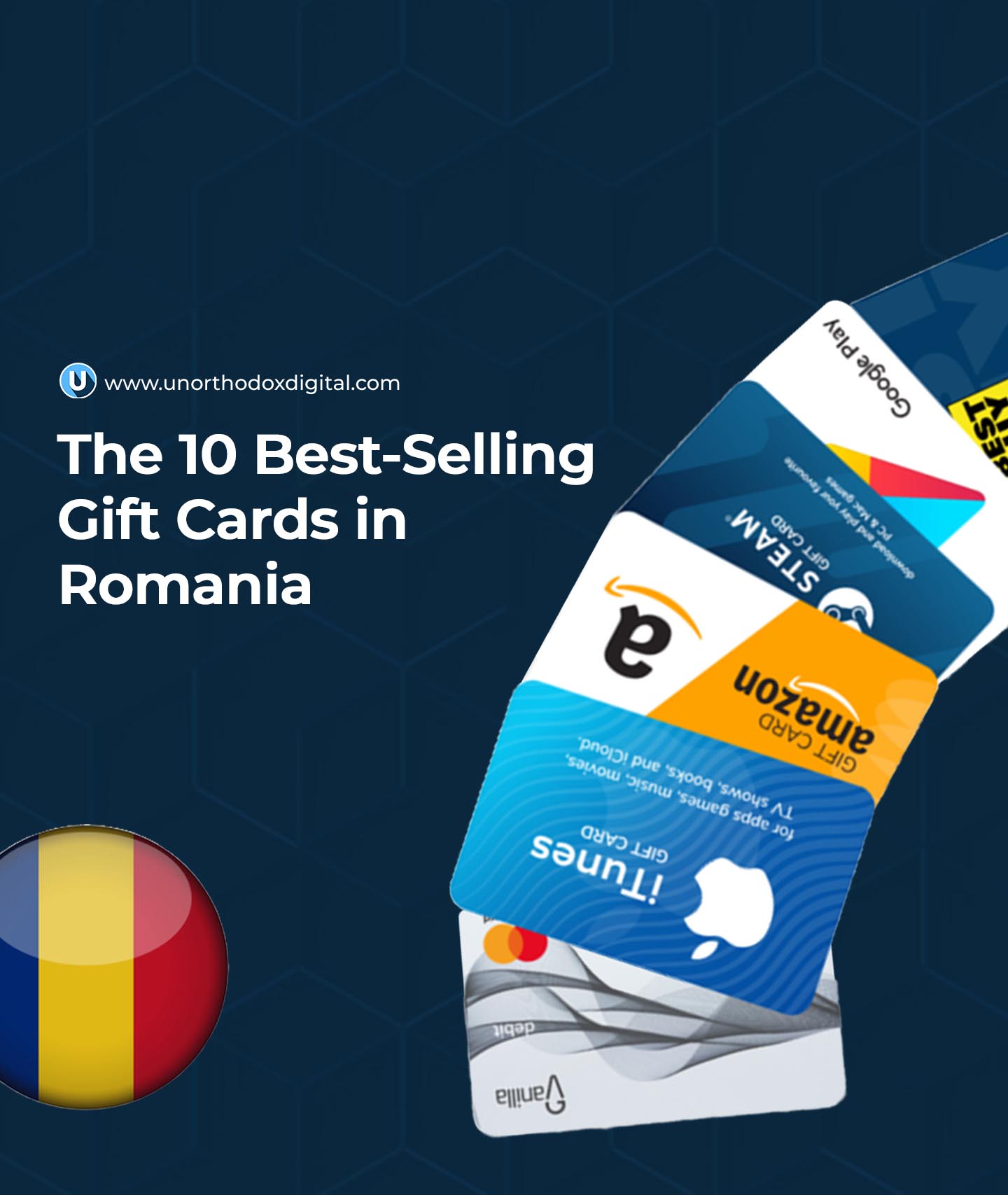
  • The 10 Best-Selling Gift Cards in Romania

    The 10 Best-Selling Gift Cards in Romania

    Why Gift Cards Are Awesome

    Imagine it’s your best friend’s birthday, and you have no idea what to buy. A toy? A book? Something for school? But what if they already have it? That’s where gift cards come in! They let the person choose what they really want, so you don’t have to guess.

    Gift cards are like tiny shopping passports. You give someone a card, and they get to pick their perfect present. And guess what? Romania has some fantastic gift card options! Whether it’s for shopping, eating, playing games, or even watching movies, there’s something for everyone. Let’s take a look at the best ones.

    Top 10 Gift Cards in Romania

    Gift CardWhat You Can Buy With ItWhy It’s Great
    CarrefourGroceries, electronics, household itemsUseful for everyday needs and special treats
    AmazonBooks, gadgets, clothes, almost anything onlineHuge variety of products, international shipping
    DecathlonSports equipment, fitness gear, outdoor gearPerfect for athletes and adventure lovers
    StarbucksCoffee, tea, snacksGreat for coffee fans and meet-ups with friends
    iTunesMusic, movies, apps for Apple devicesFun for Apple users who love entertainment
    Google PlayApps, games, books, moviesA must-have for Android users who enjoy digital content
    Cinema CityMovie tickets, popcorn, snacksIdeal for movie lovers and family outings
    FlancoElectronics, home appliances, gadgetsBest for tech lovers who want quality products
    H&MFashion, shoes, accessoriesA fantastic choice for stylish shoppers
    DouglasPerfumes, makeup, skincareGreat for beauty lovers and self-care fans

    1. Carrefour Gift Card – The Everyday Helper

    Carrefour is one of Romania’s biggest supermarkets. With this gift card, someone can buy food, clothes, electronics, and even home supplies. Imagine your parents needing groceries or a cool new kitchen gadget—this card has them covered!

    2. Amazon Gift Card – The Anything Store

    Amazon is like a giant online mall. Whether someone wants books, clothes, video games, or even furniture, this gift card lets them choose. The best part? They can shop from anywhere, right from their phone or computer.

    3. Decathlon Gift Card – For Sports and Adventure Lovers

    Know someone who loves running, swimming, or biking? Decathlon has everything for sports fans, from footballs to gym gear. This card is perfect for people who like staying active.

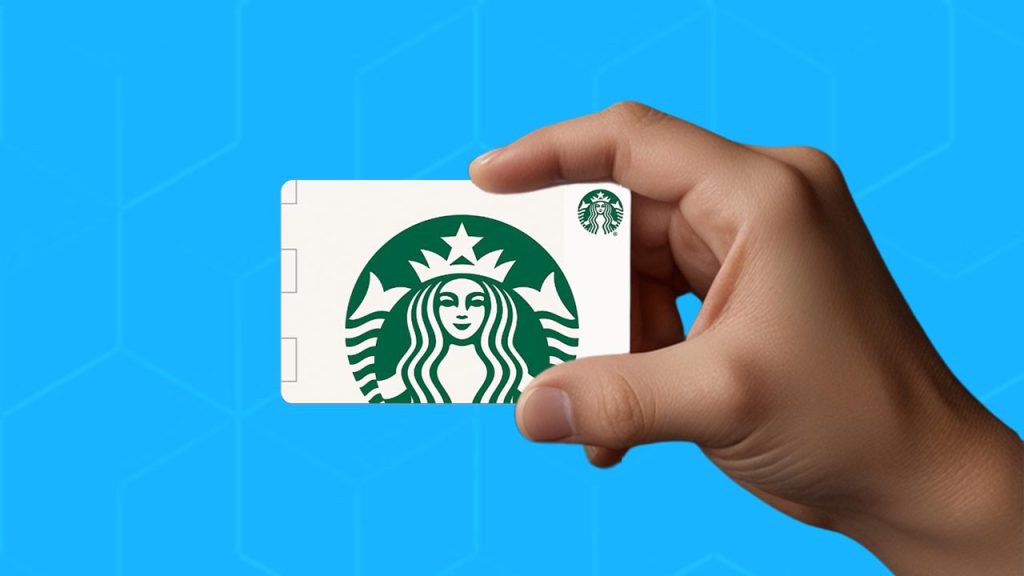
    4. Starbucks Gift Card

    The Starbucks Gift Card is for the friend who always stops for coffee! They can grab their favorite drink—whether it’s a creamy cappuccino or a refreshing iced tea. It’s also a great excuse for a fun meet-up with friends.

    5. iTunes Gift Card

    Anyone with an iPhone or iPad will love this. They can buy music, movies, apps, or even extra iCloud storage. If you know someone who’s always listening to music, this is a perfect choice.

    6. Google Play Gift Card

    Android users can buy games, apps, books, and even rent movies with this card. If your friend loves mobile gaming or reading digital books, they’ll have plenty to explore.

    7. Cinema City Gift Card

    Nothing beats a trip to the movies! This card lets someone buy tickets and enjoy popcorn and drinks. It’s perfect for a fun night out with family or friends.

    8. Flanco Gift Card

    Flanco sells TVs, laptops, kitchen gadgets, and more. If you have a friend who loves new technology, this gift card lets them pick the best gadgets for themselves.

    9. H&M Gift Card

    For the friend who loves shopping, an H&M gift card is a fantastic idea. They can get stylish clothes, shoes, and accessories for any season.

    10. Douglas Gift Card

    Douglas is the go-to place for perfumes, makeup, and skincare products. A great choice for anyone who enjoys beauty products or wants to treat themselves.

    The 10 Best-Selling Gift Cards in Romania

    How to Pick the Right Gift Card

    Choosing a gift card is easy if you think about what the person likes. Here are some quick tips:

    • For someone who loves shopping: Go for Amazon, Carrefour, or H&M.
    • For a tech lover: Flanco is a great choice.
    • For gamers and app users: Google Play or iTunes will be perfect.
    • For a movie fan: Cinema City is the way to go.
    • For someone who loves coffee and snacks: Starbucks is a great option.
    • For a beauty lover: Douglas will make them happy.
    • For a sports enthusiast: Decathlon is the best pick.

    If you’re still not sure, ask yourself: “What do they talk about the most?” That will usually help you decide.

    Where to Buy These Gift Cards

    Most of these gift cards are available online or in stores. Here’s where you can find them:

    Gift CardWhere to Buy
    CarrefourCarrefour stores, online shops
    AmazonAmazon’s website, some retail stores
    DecathlonDecathlon stores, online shop
    StarbucksStarbucks stores, gift card retailers
    iTunesApple Store, major online stores
    Google PlayGoogle Play Store, supermarkets, online shops
    Cinema CityCinema City theaters, online ticket platforms
    FlancoFlanco stores, online retailers
    H&MH&M stores, online shop
    DouglasDouglas stores, online beauty shops

    Gift cards are a great way to show someone you care while giving them the freedom to pick what they really want. Whether it’s for a birthday, a holiday, or just a special surprise, these Romanian gift cards are some of the best choices available. So next time you need a present, skip the guessing game and go for a gift card!

  • MTN to Vodacom Airtime Transfer in South Africa

    MTN to Vodacom Airtime Transfer in South Africa

    Sharing airtime between networks can feel confusing, but don’t worry—I’ve got you covered! If you’re an MTN user in South Africa and need to send airtime to someone on Vodacom, this guide will walk you through everything you need to know in the simplest way possible. I’ll break it down step by step so you can transfer airtime with confidence.

    Can You Transfer Airtime from MTN to Vodacom?

    Before we jump in, let’s get one thing straight: Airtime transfers between different networks aren’t always allowed. Mobile operators have their own policies on this, so it’s essential to check if MTN currently allows airtime transfers to Vodacom. Here’s how:

    1. Visit the MTN and Vodacom websites – Check for any updates on cross-network airtime transfers.
    2. Call Customer Service – Dial MTN South Africa’s helpline on 135 and ask if transfers to Vodacom are supported.
    3. Try the Transfer – Sometimes, the best way to find out is to attempt a transfer. If it doesn’t go through, you’ll get a notification explaining why.
    MTN to Vodacom Airtime Transfer in South Africa

    Sending MTN Airtime to Vodacom

    Transferring Airtime via the MTN Mobile App

    You can transfer airtime using the MTN Mobile Money app not only to MTN users but also to Vodacom users in just a few taps.

    Step-by-Step Guide:

    1. Download the MTN Mobile Money App – Available on Google Play Store or Apple App Store.
    2. Log in using your phone number and PIN.
    3. Find the ‘Transfer Airtime’ option in the app menu.
    4. Enter the Vodacom recipient’s number and the amount of airtime to send.
    5. Confirm the transfer – Double-check the details before hitting “Confirm.”
    6. Enter your MTN Mobile Money PIN when prompted.
    7. Wait for the confirmation message – Once you receive it, the airtime is sent!
    ProsCons
    User-friendly interfaceRequires internet connection
    Can track past transfersMust download the app

    Important Things to Keep in Mind

    1. Transfer Limits

    MTN has daily and monthly limits on airtime transfers. These limits may vary, so check with customer support or try a test transfer.

    2. Transfer Fees

    MTN may charge a small fee for transferring airtime to another network. Before confirming a transfer, check if there are any extra charges.

    3. Double-Check Numbers

    A simple typo in the recipient’s number can send your airtime to the wrong person. Always verify before confirming the transfer!

    4. Sufficient Balance Required

    You can’t send airtime if your balance is too low. Ensure you have enough airtime before attempting a transfer.

    MTN to Vodacom Airtime Transfer in South Africa

    FAQs

    1. How long does the airtime transfer take?

    Airtime transfers are usually instant. If it doesn’t reflect immediately, ask the recipient to restart their phone.

    2. Can I reverse an airtime transfer?

    No. Once airtime is sent, it cannot be reversed. That’s why it’s crucial to double-check the recipient’s number.

    3. What happens if I enter the wrong PIN?

    If you enter the wrong PIN multiple times, your transfer may be blocked temporarily. Reset your PIN via MTN customer support if needed.

    4. Can I send airtime from MTN to Vodacom using a banking app?

    Some South African banks allow customers to purchase airtime for any network, including Vodacom. However, this is different from a direct MTN-to-Vodacom transfer.

    5. Does the recipient need to do anything to receive the airtime?

    No, once the transfer is successful, the recipient will receive a confirmation message and can use the airtime immediately.

    Transferring airtime from MTN to Vodacom is simple when you know the right steps. With the MTN MoMo SA App, you can send airtime smoothly. Just remember to double-check the recipient’s number, be aware of possible fees, and ensure you have enough balance before making the transfer. Happy airtime sharing!

  • How To Check Airtime On MTN in Nigeria

    How To Check Airtime On MTN in Nigeria

    Imagine you’re about to make an important call, but suddenly, the call drops. You try again, and the same thing happens. Then it hits you—your airtime is gone! We’ve all been there, and it’s frustrating. But don’t worry, checking your MTN airtime balance is super easy, and I’m here to walk you through every single way you can do it. Whether you’re using a basic phone, a smartphone, or even a computer, I’ll show you how to check your airtime so you never get caught off guard again.

    1. Using USSD Code (The Fastest Method)

    If you want a quick and hassle-free way to check your airtime balance, USSD is your best bet. Here’s how:

    1. Dial *310# on your MTN line.
    2. Press the call button.
    3. In a few seconds, a message will pop up showing your current airtime balance.

    That’s it! It works instantly, and the best part? You don’t need internet access to use this method.

    MethodStepsInternet Required?
    USSD CodeDial *310# and press callNo

    2. Checking Airtime Balance via SMS

    If you prefer using SMS, you can still check your airtime balance with a simple text message. Here’s what to do:

    1. Open your phone’s messaging app.
    2. Type 2 in the message box.
    3. Send it to 312.
    4. Wait a few seconds, and you’ll receive a message with your airtime balance.

    This method is just as easy as USSD, and it works even if you’re offline. However, it may take a few extra seconds compared to the USSD method.

    3. Checking Airtime via the MTN Mobile App

    For those who like a more interactive way to check airtime, MTN has an official mobile app. Here’s how you can use it:

    1. Download the MyMTN App from Google Play Store or Apple App Store.
    2. Open the app and log in using your MTN phone number.
    3. On the dashboard, you’ll see your airtime balance displayed prominently.

    The app isn’t just for checking airtime; you can also buy data, recharge, and manage your MTN account in one place. The only catch? You’ll need an internet connection.

    MethodStepsInternet Required?
    MyMTN AppDownload app, log in, check balance on dashboardYes

    4. Checking Airtime Through MTN Online Portal

    If you prefer using a web browser, MTN allows you to check your balance online. Here’s how:

    1. Visit the MTN website on your browser.
    2. Log in using your MTN phone number and password.
    3. Navigate to the Balance section.
    4. Your airtime balance will be displayed on the screen.

    This method is great for those who spend a lot of time on a computer and want a convenient way to manage their MTN account.

    5. Using MTN Customer Care

    If none of the above methods work for you, you can always call MTN customer care for assistance.

    1. Dial 300 from your MTN line.
    2. Follow the voice prompts and select the option to check your balance.
    3. The system will either tell you your balance or send it via SMS.

    This method is useful if you need extra help or if other methods aren’t working due to technical issues.

    Troubleshooting: What If You Can’t Check Your Airtime?

    Sometimes, you might run into problems while trying to check your balance. Here’s what you can do:

    1. Check Your Network Signal

    If your signal is weak, USSD and SMS methods might not work properly. Try moving to a different location or waiting a few minutes before trying again.

    2. Double-Check the Code or Message Format

    If you’re using USSD, ensure you’re dialing exactly *310#. If using SMS, make sure you type 2 and send it to 312 without extra spaces or typos.

    3. Restart Your Phone

    Sometimes, a simple phone restart can fix minor network glitches.

    4. Contact MTN Support

    If nothing else works, call 300 or visit an MTN service center for help.

    How To Check Airtime On MTN in Nigeria

    Frequently Asked Questions (FAQs)

    Q1: Do I need internet to check my MTN airtime?

    No! USSD and SMS methods work without internet. The mobile app and online portal require internet access.

    Q2: Will I be charged for checking my airtime balance?

    No, checking your MTN airtime balance is free.

    Q3: What should I do if I dial *310# but don’t see my balance?

    Wait a few minutes and try again. If the issue persists, restart your phone or use an alternative method like SMS.

    Q4: Can I check my airtime balance on another phone?

    Yes! If you have your MTN SIM card in another phone, you can use USSD, SMS, or the MyMTN app.

    Q5: How often should I check my balance?

    It’s a good habit to check your balance before making calls or using mobile data to avoid unexpected disruptions.

    Checking your airtime balance on MTN is super easy and takes just a few seconds. Whether you prefer the instant USSD method, the SMS option, the MyMTN app, or the online portal, you have plenty of choices. If you ever run into issues, follow the troubleshooting tips, and you’ll be back on track in no time.

    Now, go ahead and check your balance so you never run out of airtime when you need it most!

  • How to Register for MTN Mobile Money in Ghana

    How to Register for MTN Mobile Money in Ghana

    If you live in Ghana and want an easy way to send money, pay bills, and shop without cash, then MTN Mobile Money (MoMo) is for you! It’s a simple and secure mobile wallet service that allows you to make financial transactions right from your phone. In this guide, I’ll walk you through everything you need to know about registering for MTN Mobile Money in Ghana—step by step, no confusion.

    What is MTN Mobile Money?

    MTN Mobile Money, often called MoMo, is a digital financial service offered by MTN Ghana. It allows users to send and receive money, pay bills, buy airtime, and even save money—all from their mobile phones. Think of it as a wallet on your phone, but way more convenient!

    Why Should You Use MTN Mobile Money?

    Here’s why MoMo is such a game-changer:

    FeatureBenefit
    Send & receive moneyInstantly transfer money to anyone, anywhere in Ghana.
    Pay billsSettle electricity, water, and other utility bills from your phone.
    Buy airtime & dataNo need to scratch cards—just top up directly.
    Online & in-store paymentsUse MoMo to shop and pay for services.
    Safe & secureYour transactions are protected with a PIN.

    With MoMo, you don’t need a bank account to handle digital payments. Now, let’s get you registered!

    Requirements for MTN Mobile Money Registration

    Before you start, make sure you have the following:

    1. A registered MTN SIM card (It must be in your name.)
    2. A valid Ghana Card (ECOWAS card) – This is the official ID required for MoMo registration.

    If you have these two things, you’re ready to sign up!

    How to Register for MTN Mobile Money in Ghana

    MTN offers two main ways to register for MoMo:

    Option 1: Register at an MTN Authorized Agent

    This is the most common way to sign up. Here’s how:

    1. Find an MTN MoMo agent – Look for a kiosk or shop with the MTN MoMo sign.
    2. Go with your Ghana Card and registered MTN SIM – The agent will verify your identity.
    3. Provide your details – The agent will capture your name, Ghana Card number, and biometric information.
    4. Set up your MoMo PIN – You’ll choose a 4-digit PIN to secure your account. Keep this secret!
    5. Receive confirmation – MTN will send you a message confirming your registration.

    That’s it! You’re now ready to start using MoMo.

    Option 2: Register via the MyMTN App

    If you prefer doing things yourself, you can register using the MyMTN app. Here’s how:

    1. Insert your registered MTN SIM into your phone.
    2. Download the MyMTN app from the Google Play Store or Apple App Store.
    3. Open the app and select ‘MoMo’ to begin registration.
    4. Follow the on-screen instructions – Enter your details as required.
    5. Set up your MoMo PIN – This will be used for all transactions.
    6. Receive confirmation – MTN will notify you once your registration is successful.

    Note: As of now, direct online registration through the MTN E-Request Customer Portal is not available.

    How to Activate Your MTN Mobile Money Account

    After registration, you need to activate your account before you can start using MoMo.

    Follow these steps to activate:

    1. Dial *170# on your MTN phone.
    2. Select “Choose PIN” from the menu.
    3. Enter a 4-digit PIN of your choice and confirm it.
    4. You will receive an SMS confirmation that your MoMo account is now active.

    Your MoMo wallet is now ready to go!

    Troubleshooting & Customer Support

    If you run into any issues during registration, don’t worry—MTN has several ways to help you out:

    • Call MTN Customer Care at 100 (toll-free).
    • Chat on WhatsApp at 0554300000.
    • Visit an MTN Service Center near you.
    How to Register for MTN Mobile Money in Ghana

    Frequently Asked Questions (FAQs)

    1. What is the MTN Mobile Money code?

    The USSD code to access MTN Mobile Money services is *170#.

    2. How much does it cost to register for MTN Mobile Money?

    Registration is completely free! However, some agents may charge a small service fee.

    3. Can I register MTN Mobile Money without a Ghana Card?

    No, a Ghana Card is mandatory for registration as per current MTN and government regulations.

    4. Can I register for MoMo with a SIM that isn’t in my name?

    No, your MTN SIM must be registered in your name to register for Mobile Money.

    5. What should I do if I forget my MoMo PIN?

    If you forget your PIN, dial *170#, select “Forgot PIN”, and follow the steps to reset it. You can also visit an MTN agent for help.

    Registering for MTN Mobile Money in Ghana is simple and gives you access to a world of financial convenience. Whether you’re sending money to family, paying for groceries, or handling bills, MoMo makes it easy. Just follow the steps above, and you’ll be up and running in no time.

    So, what are you waiting for? Get your Ghana Card, visit an agent or use the MyMTN app, and start enjoying the benefits of MTN Mobile Money today!

  • How to Borrow Airtime or Data on AirtelTigo in Ghana

    How to Borrow Airtime or Data on AirtelTigo in Ghana

    Running out of airtime or data when you need it most can be frustrating. Whether you’re in the middle of an important call or about to send an urgent message, not having credit can leave you stranded. Thankfully, AirtelTigo offers a simple solution: borrowing airtime or data. This guide will walk you through the process step by step, making it easy to understand—even if you’ve never done it before. Let’s dive in!

    Who Can Borrow Airtime or Data on AirtelTigo?

    Before you try to borrow airtime or data, you need to meet AirtelTigo’s eligibility requirements. Here’s what you need to qualify:

    Eligibility RequirementDetails
    Active SubscriptionMust be an AirtelTigo user for at least 90 days
    Top-Up HistoryMust have recharged at least GHS 2.00 in the last 30 days
    No Outstanding DebtAll previously borrowed airtime or data must be fully repaid

    If you don’t meet these conditions, you won’t be able to borrow airtime or data until you do.

    How to Borrow Airtime on AirtelTigo

    There are two easy ways to borrow airtime: using a USSD code or the AirtelTigo mobile app.

    Method 1: Borrowing Airtime Using a USSD Code

    This is the fastest way to borrow airtime, even if you don’t have internet access. Just follow these simple steps:

    1. Dial *588# on your phone.
    2. Follow the on-screen instructions.
    3. You will receive an SMS confirming the amount of airtime credited to your account.

    That’s it! The airtime is now available for calls, SMS, or other services.

    Method 2: Borrowing Airtime Using the AirtelTigo App

    If you prefer using an app, follow these steps:

    1. Open the AirtelTigo App on your phone.
    2. Select Airtime from the menu.
    3. Swipe to the Borrow Airtime section and tap it.
    4. Choose the amount you want to borrow.
    5. Tap Borrow Airtime and confirm by selecting Recharge.

    Your account will be credited immediately with the borrowed airtime.

    How to Borrow Data on AirtelTigo

    Just like airtime, borrowing data is straightforward and can be done using a USSD code or the AirtelTigo app.

    Method 1: Borrowing Data Using a USSD Code

    1. Dial *554# on your phone.
    2. Follow the on-screen instructions.
    3. A notification will confirm the amount of data credited to your account.

    You can now continue browsing, streaming, or chatting online!

    Method 2: Borrowing Data Using the AirtelTigo App

    1. Open the AirtelTigo App on your phone.
    2. Scroll down and select Internet.
    3. Tap on Borrow Data.
    4. Choose the data amount you need.
    5. Confirm by selecting Proceed.

    Your borrowed data will be credited instantly.

    How to Borrow Airtime or Data on AirtelTigo in Ghana

    How Much Airtime or Data Can You Borrow?

    The amount you can borrow depends on your account activity, repayment history, and frequency of borrowing.

    Borrowing MethodAirtime AmountData Amount
    USSD Code (*588# / *554#)Automatically assignedAutomatically assigned
    AirtelTigo AppChoose from available optionsChoose from available options

    If you want more control over the amount you borrow, using the AirtelTigo app is the better option.

    How Much Does Borrowing Airtime or Data Cost?

    AirtelTigo charges a 20% service fee on borrowed amounts. Here’s how it works:

    Amount BorrowedTotal Payable (Including 20% Fee)
    GHS 1.00GHS 1.20
    GHS 2.00GHS 2.40
    GHS 5.00GHS 6.00

    For example, if you borrow GHS 1.00 of airtime, you’ll need to pay back GHS 1.20 on your next top-up.

    How to Repay Borrowed Airtime or Data

    Repayment is automatic! The next time you recharge your account, AirtelTigo will deduct the borrowed amount plus the 20% service fee. Make sure to top up with enough credit to cover the deduction.

    Why Should You Use the AirtelTigo App to Borrow?

    While the USSD code method is quick, using the AirtelTigo App gives you more benefits:

    • You can see all available borrowing options.
    • You choose the exact amount you want to borrow.
    • It’s easier to track your borrowed airtime and data history.

    If you haven’t already, download the AirtelTigo App from the Google Play Store or Apple App Store.

    Borrowing airtime or data on AirtelTigo is a lifesaver when you run out at the worst time. Whether you use the USSD code for a quick fix or the AirtelTigo app for more control, you now know exactly how to get connected again in seconds. Just remember to top up regularly and repay on time to stay eligible for future borrowing!

    Now, go ahead and try it out—you’ll never be caught off guard without airtime or data again!

  • MTN Mobile Money: Charges & Fees in Ghana

    MTN Mobile Money: Charges & Fees in Ghana

    MTN Mobile Money, or MoMo, is one of the easiest ways to send, receive, and store money in Ghana. Whether you’re paying for groceries, sending money to family, or withdrawing cash, MoMo makes it simple. But with every service, there are costs involved. In this guide, we’ll break down all the fees you might encounter when using MTN MoMo—no complicated jargon, just clear, useful info.

    1. Depositing Money: It’s Free!

    Good news! You don’t pay anything to deposit money into your MTN Mobile Money wallet. Whether you add GHS 1 or GHS 10,000, it’s completely free.

    2. Withdrawing Money: What’s the Cost?

    While putting money into your MTN Mobile Money wallet is free, taking it out isn’t. Here’s a simple table showing how much you’ll pay when you withdraw cash:

    Amount (GHS)Withdrawal Fee
    50 and belowGHS 0.50
    51 – 1,9991% of the amount
    2,000 and aboveGHS 20

    So, if you withdraw GHS 500, you’ll pay 1%, which is GHS 5.

    3. Transferring Money: What’s the Charge?

    Sending money from your MoMo wallet to another wallet—whether it’s MTN or another network—comes with a fee. Let’s break it down.

    MTN to MTN Transfers

    Amount (GHS)Transfer Fee
    0.01 – 100Free
    101 – 9990.75% of the amount
    1,000 and aboveGHS 7.5

    MTN to Other Networks (Telecel, AT, etc.)

    Amount (GHS)Transfer Fee
    0.01 – 10000.75% of the amount
    Above 1,000GHS 7.5

    So, if you send GHS 500 from your MTN Mobile Money wallet to a Telecel user, you’ll pay 0.75%, which is GHS 3.75.

    4. Bank Transfers: Free or Not?

    If your MoMo number is linked to your Ghana Card and your bank account, transferring money to and from your bank is completely free. If not, here’s what you’ll pay:

    Amount (GHS)Bank Transfer Fee
    0.01 – 50GHS 0.38
    50 – 1,0000.75% of the amount
    Above 1,000GHS 7.5
    MTN mobile money charges in Ghana

    5. Bill Payments: No Extra Fees

    Using MTN Mobile Money to pay for electricity, water, school fees, or TV subscriptions? That’s free! You won’t pay extra for making bill payments.

    6. Transaction Reversals: Also Free!

    If you send money to the wrong number by mistake, don’t panic. You can request a reversal, and it won’t cost you anything. Just make sure to report the issue quickly.

    7. E-Levy: A Government Tax on Transfers

    The Ghanaian government charges an Electronic Levy (E-Levy) on some MoMo transactions. Here’s how it works:

    Amount (GHS)E-Levy Charge
    Up to 100No Charge
    Above 1001% of the amount

    For example, if you transfer GHS 200, the E-Levy charge is GHS 2 (1% of 100, since the first GHS 100 is free).

    8. MTN Mobile Money Limits: How Much Can You Hold or Send?

    Depending on the type of MoMo account you have, there are limits on how much money you can store and send daily.

    Maximum Account Balance

    Account TypeOld Limit (GHS)New Limit (GHS)
    Minimum KYC3,0005,000
    Medium KYC25,00040,000
    Enhanced KYC50,00075,000

    Daily Transaction Limit

    Account TypeOld Limit (GHS)New Limit (GHS)
    Minimum KYC2,0003,000
    Medium KYC10,00015,000
    Enhanced KYC15,00025,000

    Monthly Transaction Limit

    Account TypeOld Limit (GHS)New Limit (GHS)
    Minimum KYC6,00010,000
    Medium KYCUnlimitedUnlimited
    Enhanced KYCUnlimitedUnlimited

    If you want higher limits, you can upgrade your account by providing additional details like your Ghana Card, proof of address, and next of kin information.

    9. MTN MoMo Agent Commissions

    MTN Mobile Money agents earn commissions whenever customers withdraw money. Here’s how much they make:

    Amount (GHS)Old CommissionNew Commission
    50 and belowGHS 0.20GHS 0.20
    51 – 9990.4% of amount0.4% of amount
    1,000 – 1,999GHS 40.4% of amount
    2,000 and aboveGHS 4GHS 8

    10. How Much Does MTN Charge to Withdraw GHS 10,000?

    If you withdraw GHS 10,000 from your MoMo wallet, MTN charges GHS 20. However, some agents may ask for extra fees before processing large withdrawals.

    MTN Mobile Money is a great tool for handling money easily, but understanding the charges helps you avoid surprises. Keep these fees in mind so you can save money and make the best use of your MoMo wallet. Whether you’re sending cash, paying bills, or withdrawing funds, knowing what to expect makes all the difference.

    Want to get started with MTN MoMo? Check out our guide on how to register and set up your MoMo account hassle-free!

  • Ex-Bundle CEO Emmanuel Babalola Joins Fincra as Chief Commercial and Growth Officer

    Ex-Bundle CEO Emmanuel Babalola Joins Fincra as Chief Commercial and Growth Officer

    Fincra, a leading B2B payment infrastructure provider, has appointed Emmanuel Babalola as its new Chief Commercial and Growth Officer. This move comes as the company refines its strategy to scale cross-border transactions and expand its reach.

    Babalola brings a wealth of experience in fintech and crypto. He previously served as CEO of Bundle, a social payments app for cash and cryptocurrency, before it pivoted in July 2023 to focus solely on its peer-to-peer platform, Cashlink. Before that, he was the Director for Africa at Binance, the world’s largest cryptocurrency exchange.

    Fincra CEO Wole Ayodele expressed confidence in Babalola’s ability to drive the company forward. “His track record of scaling platforms, driving innovation, and advocating for financial inclusion aligns perfectly with our mission to build seamless payment rails for Africa. His leadership will be instrumental as we continue to push boundaries and redefine payments across the continent.”

    Founded in 2021, Fincra provides APIs that help fintechs develop and scale payment solutions. Since 2023, the company has processed over $10 billion in transactions and serves clients such as Lemfi, OneLiquidity, and Cleva. It also offers an API designed to help Nigerian businesses collect local payments through bank transfers and card transactions. Operating in multiple regions—including Ghana, South Africa, Kenya, Uganda, the UK, Europe, and North America—Fincra is now eyeing expansion into Francophone Africa.

    Babalola sees his new role as an opportunity to further his mission of financial empowerment. “Africa’s financial ecosystem is evolving rapidly, and Fincra is at the forefront of building the payment infrastructure powering the next generation of businesses and entrepreneurs. My mission has always been to enable freedom and prosperity for Africa through technology, and joining Fincra is an exciting opportunity to amplify this vision.”

    With this leadership addition, Fincra is positioning itself to accelerate growth and innovation in Africa’s digital payment space.

  • How to Cancel/Reverse an MTN MoMo Transaction in Ghana

    How to Cancel/Reverse an MTN MoMo Transaction in Ghana

    Mistakes happen. Maybe you meant to send GHS 50 but accidentally sent GHS 500. Or maybe you typed in a friend’s number but ended up sending money to a total stranger. It’s frustrating, right? The good news is that if you act fast, you might be able to get your money back.

    MTN Ghana has a process for reversing incorrect Mobile Money (MoMo) transactions, but it’s not instant. You need to follow the right steps and act quickly. In this guide, we’ll break it all down in a simple and easy-to-follow way—like explaining it to a friend who just started using MoMo.

    What You Should Know About MoMo Reversals

    Before we dive into the step-by-step process, here are a few key things to keep in mind:

    • You have up to 30 days to report a mistaken transaction. After that, a reversal may not be possible.
    • If the recipient has already spent or withdrawn the money, getting it back becomes tricky.
    • The process isn’t instant—it can take up to 15 working days for MTN to investigate and process the reversal.
    • Not all transactions are reversible. Payments to businesses or service providers (like ECG or Ghana Water) are usually final.

    So, if you realize you’ve sent money to the wrong number, don’t wait—take action immediately!

    How to Reverse an MTN MoMo Transaction

    There are three main ways to try and get your money back:

    Method 1: Using the USSD Code (Quickest Option)

    This is the fastest way to report a wrong transaction, and you can do it directly from your phone. Follow these steps:

    1. Dial *170# on your phone.
    2. Select Option 6 (My Wallet).
    3. Choose Report Fraud.
    4. Select New Reversal Process.
    5. Enter the recipient’s phone number (the person who received the money).
    6. Confirm that you actually sent the money.
    7. Enter the exact amount that was sent.
    8. Enter the date of the transaction.
    9. Wait for an SMS confirmation from MTN that your report has been received.

    Method 2: Calling MTN Customer Care (Best for Complex Cases)

    If you prefer speaking to a real person, or if the USSD method doesn’t work, calling MTN customer care is a great option.

    Here’s what to do:

    1. Dial 100 (MTN Customer Care).
    2. Select your preferred language (English, Twi, Ewe, Ga, etc.).
    3. Press 3 for Mobile Money.
    4. Choose Option 1 for information on Mobile Money.
    5. Press (*) to speak to a customer service representative.
    6. Provide the following details:
      • Your phone number
      • The recipient’s phone number
      • The date and time of the transaction
      • The exact amount sent
      • The transaction ID (if available)
    7. After your report is lodged, you will receive an SMS confirming your complaint.

    Now, you wait. MTN will investigate the case, and if the transaction meets the conditions for a reversal, they’ll process it.

    Method 3: Contacting the Recipient (If They’re Honest)

    Sometimes, the simplest solution is to just call the person who received your money and ask for a refund.

    Here’s how to handle the conversation:

    • Stay calm and polite. No one likes to be accused of theft right away.
    • Explain that you sent the money by mistake and ask if they can send it back.
    • If they refuse, remind them that MTN has a process for reversals and that keeping the money might not end well for them.

    This method only works if the recipient is honest and willing to cooperate. If they refuse, you’ll have to rely on MTN’s official reversal process.

    How to Cancel or Reverse an MTN MoMo Transaction in Ghana

    How Long Does a Reversal Take?

    MTN takes up to 15 working days to investigate and process reversals.

    Why so long? Because they need to:

    • Verify that the claim is valid.
    • Confirm that the recipient hasn’t withdrawn the money.
    • Contact the recipient and ensure they have enough balance to reverse the transaction.

    If the recipient has already used the money, you might have to wait longer until they deposit funds back into their account.

    When Can’t a Transaction Be Reversed?

    Not all transactions can be undone. A reversal won’t work if:

    • More than 30 days have passed since the transaction.
    • The recipient has already withdrawn or spent the money.
    • The payment was made to a business or service provider (like ECG or DSTV).
    • The case is disputed, and MTN cannot verify wrongdoing.

    So, your best chance of getting your money back is to report the issue immediately!

    FAQs

    Can I reverse a MoMo payment to a business?

    No, payments to businesses or service providers (like ECG, Ghana Water, or DSTV) are usually final. Always double-check before confirming such payments.

    What if the recipient refuses to return the money?

    If the recipient refuses, MTN will investigate. If they find that the money was wrongly sent and the recipient has enough balance, they’ll process the reversal. However, if the money has already been withdrawn, it becomes difficult to recover.

    Can I reverse a MoMo transaction linked to a bank?

    It’s not straightforward. If your MoMo transaction was linked to a bank, you should call MTN and your bank immediately for assistance.

    Sending money via MoMo is super convenient, but mistakes happen. That’s why you should always double-check the number and amount before pressing send. If you do make an error, don’t panic—just follow the right steps quickly, and you might be able to get your money back.

  • Best Gift Cards to Sell in Nigeria for High Rates

    Best Gift Cards to Sell in Nigeria for High Rates

    If you’ve ever received a gift card you didn’t need, you’re not alone. Many people in Nigeria choose to sell their unwanted gift cards for cash, but not all gift cards are equal. Some fetch way higher rates than others, making them more profitable to sell. So, which gift cards should you be looking out for in 2025? Let’s break it down in the simplest way possible.

    Why Do Gift Cards Have Different Rates?

    Gift card rates fluctuate based on demand, supply, and market conditions. The more people want a specific gift card, the higher its resale value. Think of it like sneakers—a rare pair from a popular brand sells for much more than an average pair you can find anywhere. The same goes for gift cards.

    Top 10 Gift Cards with the Highest Rates in Nigeria (2025)

    1. Steam Gift Card

    Gamers love Steam, making Steam gift cards one of the most valuable in Nigeria. Whether it’s for purchasing new games or in-game items, the demand for these cards remains high. A $100 Steam card can sell for around 80,000 to 85,000 Naira.

    2. Apple / iTunes Gift Card

    Apple or iTunes Gift Card

    Apple products and services are always in demand, which makes iTunes gift cards highly valuable. These cards are used for buying apps, music, and subscriptions. A $100 iTunes gift card typically sells for about 75,000 to 85,000 Naira.

    3. Google Play Gift Card

    Just like Apple gift cards, Google Play cards are widely used for buying apps and games on Android devices. A $100 Google Play gift card can sell for around 70,000 to 90,000 Naira.

    4. Amazon Gift Card

    Amazon is one of the biggest online shopping platforms in the world, so Amazon gift cards hold strong value. If you have a cash receipt, you can sell a $100 Amazon gift card for up to 75,000 Naira.

    5. Razer Gold Gift Card

    Razer Gold is another favorite among gamers, especially those who buy in-game items. The high demand for these cards means they trade for excellent rates. A $100 Razer Gold gift card can go for about 82,000 Naira.

    6. Sephora Gift Card

    Beauty enthusiasts and makeup lovers drive the demand for Sephora gift cards. A $100 Sephora gift card sells for about 65,000 to 75,000 Naira.

    7. eBay Gift Card

    eBay gift cards allow users to shop for a variety of items online. Due to their demand, they sell for high rates. A $100 eBay gift card can trade for around 75,000 Naira.

    8. AMEX (American Express) Gift Card

    AMEX gift cards are widely accepted for purchases in different stores, making them a valuable option for resale. A $100 AMEX gift card can be sold for around 70,000 to 90,000 Naira.

    9. Walmart Gift Card

    Walmart gift cards can be used to buy products online or in physical Walmart stores. Their versatility keeps their resale value high. A $100 Walmart gift card sells for about 70,000 Naira.

    10. Nike Gift Card

    Nike gift cards are a great option for people who love sneakers and sportswear. They can be used on the Nike website or in stores. A $100 Nike gift card can be sold for about 65,000 Naira.

    Other Notable Mentions

    • Footlocker Gift Card – Popular among sneaker lovers, trades for good rates.
    • Vanilla Gift Card – A great alternative to Visa/MasterCard gift cards.

    FAQs About Selling Gift Cards in Nigeria

    Q: Where Can I Buy Gift Cards in Nigeria?

    A: In Nigeria, you can easily buy gift cards on Grey. You place an order and receive your gift card details almost instantly at the best rates.

    Q: Where Can I Sell Gift Cards in Nigeria?

    A: You can sell gift cards on various online platforms that offer high rates and fast payouts like GiftCardsToNaira. Be sure to check for a reliable platform with good customer reviews.

    Q: How Do I Check My Gift Card’s Current Rate?

    A: Gift card rates fluctuate, so it’s best to use an online gift card rate checker to see the latest prices before selling.

    Q: What Affects the Value of a Gift Card?

    A: Factors like brand popularity, market demand, and whether you have a cash receipt can influence how much your gift card is worth.

    Selling gift cards in Nigeria can be a great way to make extra cash, especially if you know which cards fetch the highest rates. Whether you’re trading gaming cards like Steam and Razer Gold or shopping cards like Amazon and Walmart, always check the latest rates to maximize your earnings.

    Now that you know which gift cards are worth the most, which one do you have sitting in your wallet? It might be time to cash in!

  • How Do I Send “Please Call Me” on Telkom?

    How Do I Send “Please Call Me” on Telkom?

    Imagine this: You need to call someone urgently, but your airtime balance is sitting at a big fat zero. No problem! Telkom has a nifty little trick up its sleeve called the “Please Call Me” service. It’s a simple, free way to ask someone to call you back when you can’t make the call yourself. Whether it’s an emergency or you just ran out of airtime at the worst possible moment, this guide will show you exactly how to send a “Please Call Me” on Telkom.

    What is a “Please Call Me”?

    A “Please Call Me” is a free message you can send from your Telkom phone to someone else, asking them to call you back. It’s like tapping a friend on the shoulder and saying, “Hey, call me when you can!” This is super useful when you:

    • Run out of airtime and need to contact someone.
    • Need to reach a friend, family member, or even a co-worker in a pinch.
    • Are you in an emergency and can’t make a call yourself?

    Now, let’s get straight to the point—how do you actually send one?

    Step-by-Step Guide to Sending a “Please Call Me” on Telkom

    Step 1: Open Your Phone’s Dialer

    This is the app you use to make calls. It usually looks like a little phone icon on your screen. Open it up!

    Step 2: Dial the Special Code

    Here’s the magic number: 140 followed by the person’s phone number. It looks like this:

    *140*Recipient’s Number#

    For example, if you want to send a “Please Call Me” to someone with the number 0702244424, you would dial:

    *140*0702244424#

    Once you’ve typed that in, press the call button.

    Step 3: Wait for Confirmation

    You’ll get a confirmation message letting you know that your request has been sent. At the same time, the person you’re trying to reach will get a message that says something like:

    “Please call [Your Number] back.”

    And that’s it! Now you just wait for them to call you back.

    How to Send Please Call Me on Telkom

    Pro Tips for Using “Please Call Me” Effectively

    Sending a “Please Call Me” is easy, but here are some tips to make sure you’re using it the right way:

    • Use it when it really matters – If you keep spamming someone with “Please Call Me” messages, they might start ignoring them. Keep it for times when you actually need a callback.
    • Make sure you have the right number – Double-check before you send it! You don’t want to send your callback request to the wrong person (awkward!).
    • Know the limits – Some networks limit the number of “Please Call Me” messages you can send per day. If it’s not working, you might have hit your daily cap.

    When Should You Use “Please Call Me”?

    Now that you know how to send a “Please Call Me,” when should you actually use it? Here are a few real-life examples:

    • You’re out of airtime but need to talk to a friend – Maybe you just want to catch up, but you’re low on credit. No worries, send them a quick “Please Call Me” and wait for them to ring you back.
    • You’re in an emergency – If you find yourself in a situation where you really need help and can’t make a call, this feature can be a lifesaver.
    • You’re coordinating plans – Maybe you’re trying to meet up with someone and need a quick chat but ran out of airtime. A “Please Call Me” can let them know to get in touch.

    The “Please Call Me” feature on Telkom is one of those small but super handy tools that can save the day when you’re out of airtime. It’s free, easy to use, and can help you stay connected even when your balance says otherwise.

    Next time you’re stuck without airtime, just remember: *140*Recipient’s Number#, hit the call button, and let Telkom do the rest!